
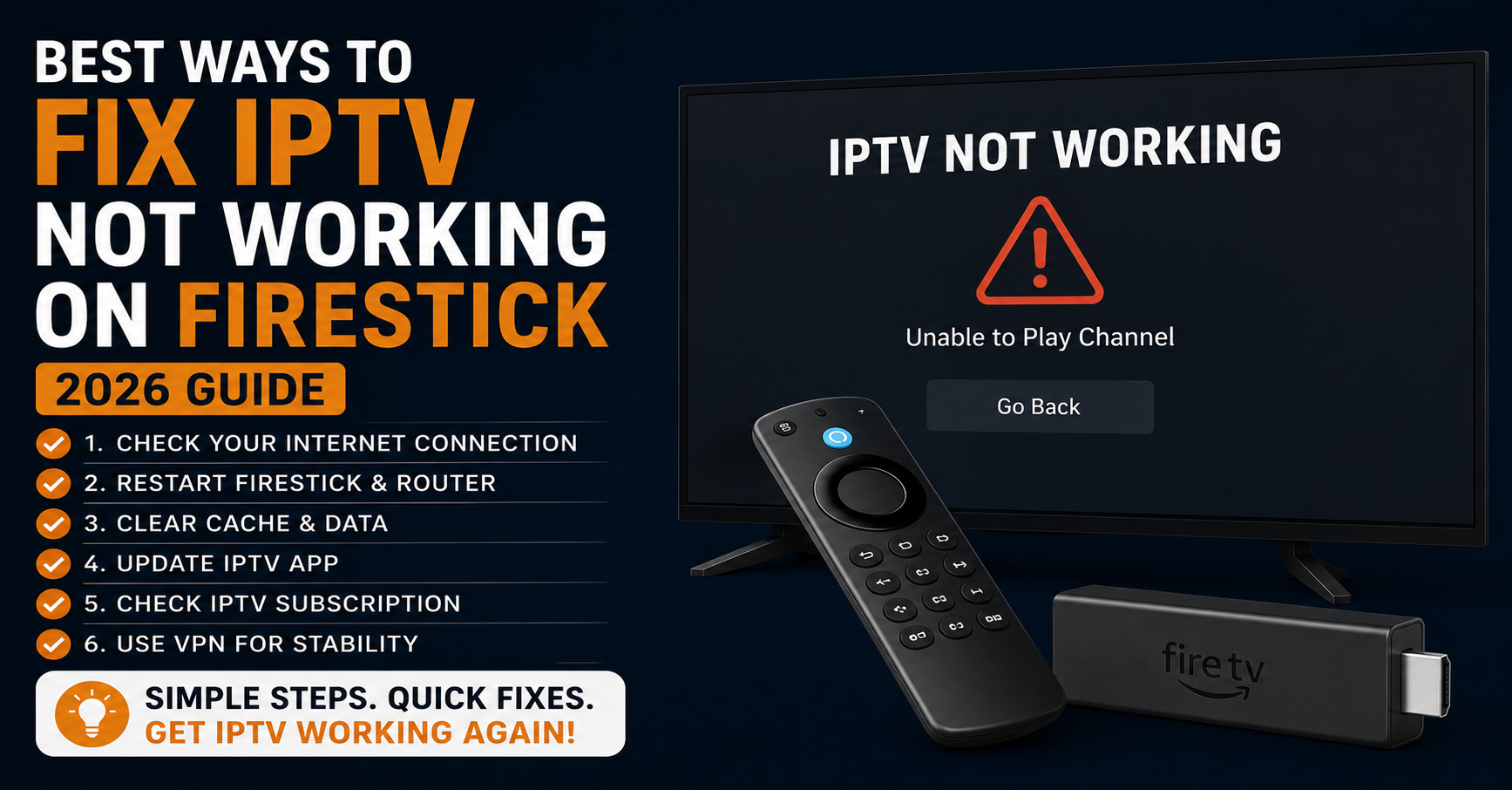
IPTV Not Working on Firestick: The Real Reasons Most Guides Won’t Tell You
Most people searching for why their IPTV not working on Firestick end up following the same recycled advice — clear the cache, restart the app, reinstall. Then the problem comes back three days later. That cycle repeats because the fix addressed the symptom, not the cause.
After working through hundreds of support escalations across IPTV reseller networks, one pattern becomes very clear: the majority of IPTV not working on Firestick complaints have nothing to do with the Firestick itself. The device is usually fine. The problem lives upstream — in the infrastructure, the ISP routing, or how the app was configured in the first place.
This guide covers the real reasons, in the order they actually matter.
Why IPTV Stops Working on Firestick Without Warning
The Firestick is one of the most widely used IPTV devices in the UK, US, and across Europe — which also means it generates the most support tickets. What makes troubleshooting difficult is that IPTV not working on Firestick can present identically whether the issue is a dead stream, ISP throttling, a DNS failure, or a memory-starved device.
Operators see this constantly: a customer reports buffering or a black screen, the UK IPTV reseller restarts the server, the problem disappears for 48 hours, then returns. Nothing was actually fixed. The underlying cause — usually ISP-level interference or an overloaded CDN node — was never identified.
The Three Categories That Cover 90% of Failures
Before diving into individual fixes, it helps to think in categories:
- Device-side issues — RAM limitations, Fire OS conflicts, outdated apps
- Network-side issues — ISP throttling, DNS poisoning, VPN misconfigurations
- Server-side issues — CDN overload, failed failover, backend outages
Understanding which category applies determines whether restarting an app will actually solve anything — or whether you are wasting twenty minutes on the wrong layer.
Firestick Hardware Limitations That Kill IPTV Performance
Amazon’s entry-level Firestick models — particularly the 3rd generation Firestick and older Firestick 4K units — ship with limited RAM. Under Fire OS 7 and above, background processes consume a significant portion of available memory before any IPTV app even launches.
When IPTV not working on Firestick appears as constant buffering on a device that was working fine previously, the first check should always be available RAM, not stream quality.
A mistake we repeatedly see is resellers instructing customers to simply reinstall their IPTV application without first checking how many background applications are running. On a Firestick with 1.5GB RAM, three or four background apps will leave less than 600MB free — not enough for stable HLS stream decoding at 1080p.
RAM Management Steps That Actually Work
Step 1: Navigate to Settings → Applications → Manage Installed Applications
Step 2: Force stop every application not actively in use — including the Amazon system apps you did not open manually
Step 3: Restart the Firestick using Settings → My Fire TV → Restart (not unplug — a proper restart clears volatile memory)
Step 4: Launch your IPTV application before opening anything else
Step 5: If buffering persists after these steps, the issue has moved to the network or server layer
Pro Tip: On older Firestick models, enabling “Do Not Interrupt” mode under Settings → Accessibility → Captions does not solve RAM issues, but disabling Alexa voice wake detection does free up a small but consistent background process.
ISP Throttling: The Invisible Reason IPTV Not Working on Firestick Keeps Returning
This is the most under-discussed cause of IPTV not working on Firestick in the UK and across European markets. Internet Service Providers — particularly BT, Sky, and Virgin Media in the UK — have implemented deep packet inspection (DPI) on residential connections. When DPI identifies sustained high-bitrate streaming traffic that does not resolve to a recognised CDN (Netflix, BBC iPlayer, YouTube), the connection is throttled.
The result is not a complete outage. The stream loads, buffers for 10–30 seconds, drops quality, then buffers again. Customers describe it as “the internet is fine but IPTV keeps stopping.” That description almost always points to throttling rather than a server problem.
How to Test Whether Your ISP Is Throttling IPTV
| Test | Method | Result Indicates |
|---|---|---|
| Speed test without VPN | Run fast.com or speedtest.net | Baseline connection speed |
| Speed test with VPN active | Same test via VPN server | Whether throttling is ISP-specific |
| IPTV stream without VPN | Launch app normally | If buffering persists here |
| IPTV stream with VPN active | Same channels, VPN on | If buffering disappears, ISP throttling confirmed |
If the stream runs cleanly through a VPN but breaks without it, your ISP is the problem — not the Firestick, not the IPTV provider.
Pro Tip: Not all VPNs resolve throttling equally. Protocols matter. OpenVPN on UDP port 1194 is frequently throttled itself on UK residential lines. WireGuard or Lightway protocols resolve this in most cases.
DNS Poisoning and Why It Makes IPTV Not Working on Firestick So Hard to Diagnose
DNS poisoning is a less obvious but increasingly common cause of IPTV not working on Firestick, particularly in the UK following enforcement actions targeting IPTV infrastructure. When an IPTV provider’s domain is added to an ISP-maintained blocklist, the DNS query from your device returns either a null response or redirects to a warning page.
On a Firestick, this does not produce a helpful error message. The app simply shows a loading screen that never resolves, or a generic “no connection” error that looks identical to a dropped internet connection.
We noticed unusual ISP behaviour during an enforcement wave in late 2024 where multiple IPTV domains were DNS-blocked at the ISP level within 48 hours of each other. Customers across three different reseller networks reported simultaneous failures — all presenting as generic connection errors. The Firesticks, apps, and internet connections were all functional. Only the DNS resolution had changed.
Switching DNS on a Firestick
Firestick does not expose DNS settings in its standard Wi-Fi configuration menu. The change must be made at the router level or by using a VPN with DNS leak protection enabled.
At router level:
- Access your router admin panel (usually 192.168.1.1 or 192.168.0.1)
- Navigate to DNS settings
- Replace default DNS with 1.1.1.1 (Cloudflare) or 8.8.8.8 (Google)
- Restart the router and the Firestick
This single change resolves a significant percentage of IPTV not working on Firestick cases that had nothing to do with the device or the service itself.
App-Level Problems: IPTV Players That Fail Silently on Firestick
Not all IPTV applications behave identically on Fire OS. Players built primarily for Android TV sometimes render incorrectly on Firestick, particularly on Fire OS 8, which changed how certain background services are managed.
After reviewing hundreds of support requests from resellers, a consistent pattern emerges: customers who installed IPTV applications from unofficial APK sources outside the Amazon App Store frequently experience silent failures — the app launches, the playlist loads, but streams either freeze at the loading frame or disconnect after exactly 30 seconds.
The 30-second disconnect pattern almost always points to a token or authentication timeout, often caused by an outdated APK version that is no longer compatible with the provider’s server authentication method.
Recommended IPTV Players for Firestick in 2026
- TiviMate — most stable for Firestick; handles large playlists without memory errors; requires sideloading but worth the setup process
- IPTV Smarters Pro — widely used; occasional compatibility issues on Fire OS 8 with EPG loading
- GSE Smart IPTV — reliable fallback option; lighter on RAM than competitors
- Downloader app — required to sideload any of the above; install this first from the Amazon App Store
Pro Tip: When IPTV not working on Firestick occurs after a Fire OS automatic update, the first check should be whether the IPTV player APK was force-closed by the OS update process. Fire OS updates frequently reset app permissions silently — including storage access that IPTV players require to cache EPG data.
What Resellers Get Wrong When Customers Report IPTV Not Working on Firestick
One reseller lost a significant portion of their subscriber base within a single quarter — not because their streams were poor quality, but because their support responses were generic and slow. Every ticket that came in saying IPTV not working on Firestick received the same reply: “Please clear cache and reinstall.” No triage. No diagnostic questions. No escalation pathway.
Effective reseller support starts with a structured intake process that identifies the failure category before issuing any instructions.
Reseller Support Triage Checklist
First response questions to ask every customer:
- Is the internet connection working on other devices?
- Is the Firestick displaying an error message or just a black/loading screen?
- Did the problem start suddenly or gradually (buffering getting worse over time)?
- Is a VPN currently active on the network or device?
- Was anything changed on the router, Firestick, or IPTV app recently?
These five questions eliminate at least three of the six common failure categories before any technical intervention begins. Resellers who implement this intake process reduce average resolution time significantly and, more importantly, reduce repeat contacts for the same issue.
For UK IPTV resellers managing larger subscriber bases, platforms like britishreseller.com provide infrastructure designed around the kind of uptime reliability that prevents the majority of these support escalations from occurring in the first place.
Server-Side Failures: When IPTV Not Working on Firestick Is Not Your Problem to Fix
During major football matches — Champions League finals, Premier League title deciders, World Cup knockout rounds — IPTV server infrastructure faces traffic spikes that can be five to ten times normal load. Providers without proper load balancing and CDN redundancy experience cascading failures at exactly the moment subscriber numbers peak.
From the subscriber’s perspective, IPTV not working on Firestick during a major match feels like a personal failure of their device or app. In reality, the Firestick is the last thing to blame. The failure is at the CDN routing layer.
Signs the Problem Is Server-Side, Not Device-Side
- Multiple channels fail simultaneously, not just one
- The issue started exactly at a major event kick-off time
- Other devices on the same network (Smart TV, phone) also show failures
- A backup server URL or secondary M3U playlist loads without problems
- The stream works at 2am when traffic is low
If three or more of these conditions apply, the issue is upstream infrastructure. No amount of Firestick troubleshooting will resolve it. The correct action is to contact the provider, request a server status update, and monitor for recovery.
Pro Tip: Ask your IPTV provider whether they operate multiple server locations with automatic failover. A provider that cannot answer this question clearly is likely running single-origin infrastructure — which means every major sporting event is a risk event for their entire subscriber base.
Advanced Fixes for Persistent IPTV Not Working on Firestick Issues
When standard troubleshooting has been exhausted and IPTV not working on Firestick persists, the following less-discussed adjustments often resolve stubborn cases.
Adjust Streaming Buffer Settings
Most IPTV players allow manual buffer adjustment. The default buffer on TiviMate and IPTV Smarters is often too low for UK residential connections experiencing minor packet loss. Increasing the buffer from 5 seconds to 10–15 seconds absorbs inconsistent delivery without dropping the stream.
Disable IPv6 on Your Router
During a migration project supporting a multi-region reseller network, IPv6 routing conflicts were identified as a cause of intermittent IPTV failures that were nearly impossible to reproduce consistently. Disabling IPv6 at the router level resolved the issue across all affected devices, including multiple Firesticks on the same network.
Most home routers in the UK allow IPv6 to be disabled under Advanced Network Settings. This change carries minimal risk for standard home use.
Use a Wired Connection via Ethernet Adapter
Amazon sells an official Ethernet adapter for Firestick 4K. For any subscriber experiencing persistent IPTV not working on Firestick on Wi-Fi, a wired connection eliminates the largest single variable in home network troubleshooting. Wi-Fi interference from neighbouring networks, microwave ovens, and Bluetooth devices causes more IPTV instability than most customers realise.
Actionable Checklists
Subscribers
- Confirm internet is working on a separate device before troubleshooting IPTV
- Force stop all background apps on Firestick before launching IPTV player
- Test stream with VPN on and off to identify ISP throttling
- Change router DNS to 1.1.1.1 or 8.8.8.8
- Check whether Fire OS updated automatically and reset app permissions
- Increase buffer time in player settings if buffering occurs on good connections
- Use Ethernet adapter if Wi-Fi instability is suspected
- Contact provider only after eliminating device and network variables
Resellers
- Implement a 5-question triage intake for all IPTV not working on Firestick tickets
- Maintain a status page or channel where server outages are communicated proactively
- Know whether your provider has multi-server failover before a major event
- Keep an updated list of recommended IPTV players with known Fire OS compatibility issues
- Document repeat complaints by failure type to identify infrastructure patterns early
Sub-Resellers
- Escalate tickets that match server-side failure patterns immediately — do not attempt device fixes during active outages
- Keep a secondary M3U or backup server URL available for subscribers during events
- Communicate estimated resolution times honestly — silence creates churn faster than outages do
- Track which customers report issues repeatedly — they are either on poor ISP connections or need device support
Frequently Asked Questions
Why is IPTV not working on Firestick after it was fine yesterday? Sudden failures that appear without any changes on your end are almost always caused by either a server-side outage at your provider or a DNS-level block applied by your ISP. Check whether other devices on the same network are also affected and test with a VPN active to isolate the cause.
Does clearing the cache fix IPTV not working on Firestick? Clearing the cache resolves corrupted temporary data but does not fix network-level issues, DNS problems, or server outages. It is a reasonable first step for app-specific freezing or login errors, but it should not be the only troubleshooting step attempted.
Can a VPN fix IPTV not working on Firestick? A VPN can resolve throttling and DNS blocking, which are two of the most common causes. However, a VPN with slow servers or poor routing can also worsen buffering on a connection that was not being throttled. Use a VPN as a diagnostic tool first — if the stream improves with it active, ISP interference is confirmed.
Why does IPTV only stop working on Firestick during football matches? This is a strong indicator of server-side overload. Providers without CDN load balancing and failover infrastructure see cascading failures when traffic spikes during major events. Contact your provider and ask specifically whether they have redundant server infrastructure.
What is the best IPTV player for Firestick in 2026? TiviMate is currently the most reliable option for Firestick across Fire OS versions. It handles large playlists efficiently, manages EPG data without excessive RAM usage, and provides stable playback at 1080p and 4K. IPTV Smarters Pro is a capable alternative for users who prefer a different interface.
Why does IPTV not working on Firestick keep coming back after fixing it? Recurring failures after temporary fixes almost always mean the root cause was never addressed. If ISP throttling is the cause, it will return every session without a VPN. If a DNS block is in place, it will return every time the router fetches a new DNS response. Fixes that hold permanently address the underlying layer.
As a reseller, what should I tell customers when IPTV is not working on Firestick? Start with triage questions before issuing instructions. Identify whether the failure is device-side, network-side, or server-side. Never issue generic instructions like “reinstall the app” without understanding the failure category. If the issue is server-side, communicate that clearly with an estimated resolution time.
Can router settings cause IPTV not working on Firestick? Yes. ISP-assigned DNS servers, IPv6 routing conflicts, and aggressive firewall settings on home routers are all documented causes of IPTV instability on Firestick. Changing DNS to a public resolver and disabling IPv6 resolves a meaningful percentage of persistent cases.
That covers everything a subscriber, reseller, or sub-reseller genuinely needs to diagnose and resolve IPTV not working on Firestick — from device RAM limits all the way through to server-side infrastructure failures. No recycled advice, no guesswork.