
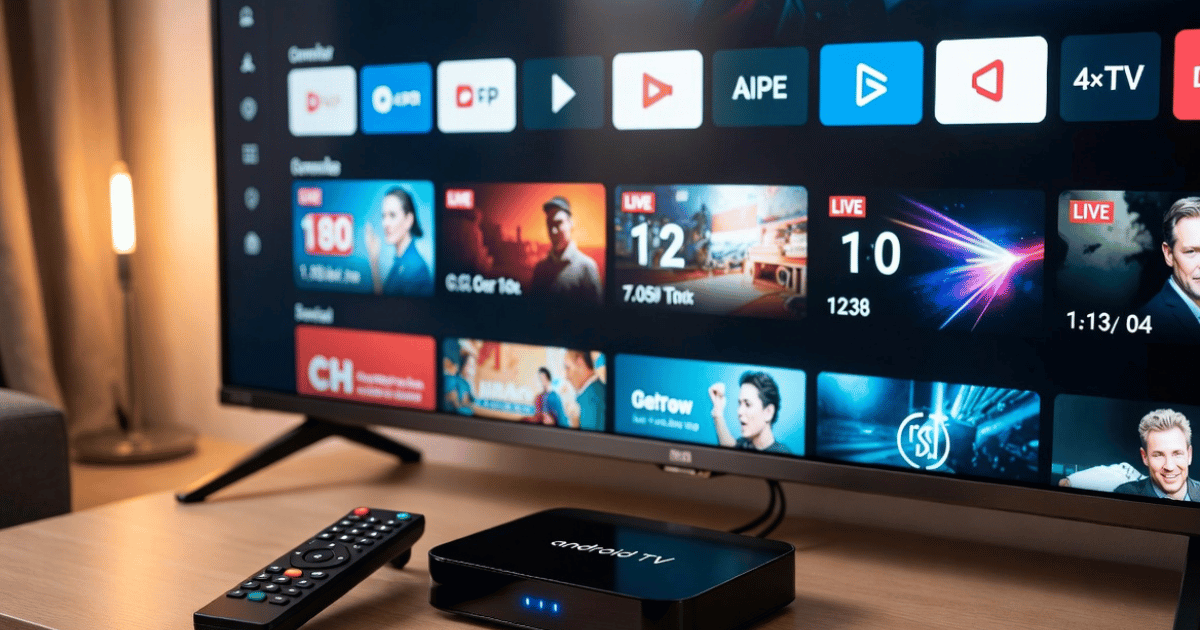
How to Install IPTV on Android Box: The Complete 2026 Setup Guide
Most people searching for how to install IPTV on Android Box end up in the same loop — wrong app, broken login, buffering on every channel. That loop usually has nothing to do with their internet speed.
It comes from using the wrong app format, entering credentials incorrectly, or connecting to a provider whose server infrastructure collapses under load. This guide skips the theory. It covers what actually works in 2026, from first install to stable playback — including the parts most setup guides quietly leave out.
Whether you are setting up your own household subscription or managing IPTV lines for multiple customers, the Android Box remains one of the most reliable and flexible devices available. Get the setup right once, and it runs without issues for months.
Why Android Box Is the Preferred Device for IPTV Installation
Not all devices handle IPTV equally. Smart TVs restrict sideloading. Firestick imposes storage limits. iOS locks down third-party apps entirely. The Android Box sits in a different category.
It runs a full version of Android TV OS or standard Android, depending on the model. That means full access to the Google Play Store, the ability to sideload APK files, and enough processing power to handle 4K HLS streams without frame drops.
For anyone learning how to install IPTV on Android Box, the device offers one critical advantage — flexibility. You are not locked into one app format or one way of entering your subscription credentials.
What makes Android Box practical for IPTV:
- Accepts M3U playlist URLs directly
- Supports Xtream Codes API login (username, password, server URL)
- Handles external storage for app installs
- Compatible with wireless and wired ethernet connections
- Runs multiple IPTV apps simultaneously for testing
Pro Tip: Always connect your Android Box via ethernet cable during initial setup. Wireless connections mask buffering problems caused by the router rather than the IPTV server — which leads to wrong troubleshooting decisions later.
Preparing Your Android Box Before IPTV Installation
Jumping straight into app installation without preparing the device is the fastest way to create problems that look like provider issues but are not.
Before you install IPTV on Android Box, run through this device preparation checklist first.
Device preparation steps:
- Update Android OS to the latest available version
- Clear storage — keep at least 2GB free
- Enable “Install from Unknown Sources” in Security Settings (for sideloaded APKs)
- Disable automatic sleep or screen timeout during the first test session
- Set DNS to a reliable public resolver — this reduces DNS poisoning risk on restricted networks
The “Install from Unknown Sources” setting is particularly important. Most premium IPTV apps are not hosted on Google Play. They are distributed as APK files directly from the provider. Without enabling this setting, the installation will fail silently or throw a security block.
Check your Android Box firmware version before moving forward. Older firmware on budget boxes can cause HLS latency spikes that look exactly like server-side buffering. A firmware update often resolves them without touching the subscription.
How to Install IPTV on Android Box Using IPTV Smarters Pro
IPTV Smarters Pro is the most widely supported app in the reseller ecosystem. It accepts both M3U and Xtream Codes login formats, supports multi-screen EPG, and handles catch-up where the provider enables it.
Installation method via Google Play:
- Open Google Play Store on your Android Box
- Search “IPTV Smarters Pro”
- Select the official app (developer: Whmcs Smarters)
- Install and open
Installation method via APK (if Play Store is unavailable):
- Download the APK from the official Smarters website on a separate device
- Transfer via USB drive to the Android Box
- Open a file manager, locate the APK, and install
Once installed, you will see a login screen with two options: Load Your Playlist and Xtream Codes API.
For Xtream Codes login (most common with reseller panels):
- Select “Xtream Codes API”
- Enter the server URL provided by your IPTV supplier
- Enter your username and password exactly as given — no spaces, no capital letters where there should not be any
- Tap “Add User”
Channel loading time varies between 30 seconds and 3 minutes depending on channel count. Do not force-close the app during this process.
M3U Playlist Setup on Android Box: When to Use It and When to Avoid It
M3U is the older format, and it still works — but it carries limitations that become obvious at scale or during peak streaming hours.
An M3U URL is a plain text playlist file. Every time you open the app, it re-fetches the entire playlist from the server. On a large line with 40,000 channels, that initial fetch creates a load spike. On providers running lean infrastructure, this contributes to slow load times and occasional channel list failures.
| Format | Load Speed | Stability | Best Use Case |
|---|---|---|---|
| Xtream Codes API | Fast | High | Reseller panels, multi-device setups |
| M3U URL | Slower | Medium | Single device, trial accounts |
| M3U Local File | Fastest | Low | Offline testing only |
When M3U is the right choice:
- Your provider only issues M3U links (common with trial accounts)
- You are testing a new provider before committing to Xtream Codes
- You are running a secondary backup line on a separate app
For anyone running customer lines through a reseller panel, Xtream Codes is the correct format. It gives the panel full visibility over connection status, device count, and expiry — none of which exist in an M3U-only setup.
Pro Tip: If your provider cannot give you Xtream Codes credentials and only offers M3U, treat that as an infrastructure signal. Providers who have not built Xtream Codes support into their panel are typically running older, less monitored systems.
Best IPTV Apps for Android Box in 2026
IPTV Smarters Pro is not the only option. Different apps handle different use cases better, and knowing which one to reach for saves time during customer support calls.
TiviMate — Best for household viewers
TiviMate has the cleanest EPG interface available on Android Box. It handles large channel lists smoothly, supports multiple playlists under one app, and has a Picture-in-Picture mode for sports. The paid version unlocks panel management features useful for households with multiple TVs.
GSE Smart IPTV — Best for technical users
GSE gives more control over stream settings, including HLS buffer size and connection timeout. Experienced users who understand why streams drop mid-playback use GSE to isolate whether the issue is client-side or server-side.
Kodi with PVR IPTV Simple Client — Best for advanced setups
Kodi is not an IPTV app by default. The PVR IPTV Simple Client add-on converts it into one. This setup gives the most control over EPG, recording, and local media integration — but it has the steepest learning curve of the three.
For new subscribers being set up by a reseller, IPTV Smarters Pro remains the recommendation. It is the most standardised across providers and generates the fewest support tickets.
For a full breakdown of compatible IPTV services and app pairings, check what your provider officially supports before committing to an app.
How to Fix Buffering After Installing IPTV on Android Box
Buffering after installation is the most common complaint. It is also the most misdiagnosed one. Most users assume the issue is their internet connection. In 2026, the majority of buffering complaints trace back to three other causes.
The three real causes of buffering on Android Box:
- Server-side overload: The IPTV provider’s stream servers are handling more concurrent connections than their load balancing can distribute. This is peak-hour buffering — it happens between 7pm and 10pm and clears after midnight.
- DNS poisoning or ISP blocking: Some ISPs now use AI-driven traffic analysis to identify and throttle IPTV streams. The stream does not drop entirely — it degrades. Switching DNS or enabling a VPN resolves this.
- HLS latency from app buffer settings: The default buffer size in most apps is too small for 4K streams. Increasing the buffer in app settings to 10–15 seconds reduces mid-stream stutter without introducing meaningful playback delay.
Quick fix sequence for buffering:
- Switch from Wi-Fi to ethernet
- Change DNS settings on the Android Box to a public resolver
- Test on a standard HD channel rather than a 4K stream
- If HD is stable but 4K is not, the issue is bandwidth or buffer size, not the server
- If all channels buffer at the same rate, contact your provider and ask about backup uplink server options
Providers running serious infrastructure maintain multiple backup uplink servers with automatic failover. If your provider cannot answer that question, that is the actual problem.
How IPTV Resellers Should Handle Android Box Setup for Customers
If you are reselling subscriptions, the way you onboard customers onto Android Box devices directly affects your churn rate. A customer who buffers on day one rarely renews.
The setup process you hand to customers needs to be idiot-proof and device-specific. A generic “enter your M3U link” instruction sheet creates more support tickets than it prevents.
What a proper reseller onboarding pack for Android Box includes:
- Device-specific step-by-step install instructions (with screenshots)
- App recommendation based on their technical comfort level
- Pre-configured DNS settings to reduce ISP blocking complaints
- A clear escalation path for issues — response time expectations matter as much as technical fixes
Understanding how your reseller panel manages connections also matters here. Learn more about how IPTV reseller panel works to manage customer lines efficiently before scaling your customer base.
Pro Tip: Create a separate test line on your own Android Box before issuing credentials to a customer. If you cannot reproduce a stable stream on your end, do not blame the customer’s setup. That test line has saved thousands of unnecessary back-and-forth support calls.
For resellers handling volume, connecting through a structured panel with load balancing and multi-server failover is the only way to keep churn low. Review the IPTV reseller panel options at IPTVServices.ltd to understand what infrastructure controls are available.
ISP Blocking and Android Box IPTV in 2026: What Has Changed
The enforcement landscape in 2026 is different from 2023. ISPs are no longer relying solely on domain blocking or IP blacklisting. AI-driven deep packet inspection is now being used to identify HLS stream patterns — not the destination, but the behaviour of the traffic itself.
What this means practically:
- A stream URL that worked last month may now be throttled without any error message
- VPN use is more common among IPTV subscribers than it was two years ago
- Providers who rotate server IPs regularly are experiencing significantly fewer disruption complaints than those running static infrastructure
For Android Box users, the fix is straightforward. A lightweight VPN app installed on the device — or configured at router level — shifts traffic classification away from IPTV patterns. This does not guarantee immunity, but it reduces AI-driven throttling significantly.
The resellers experiencing the fewest blocking complaints in 2026 are those whose providers run backup uplink servers in multiple data centre regions. When one regional path is throttled, traffic reroutes through an unaffected path. This is infrastructure-level protection that no app setting or VPN fully replicates.
For perspective on how the UK reseller market is evolving around these challenges, the team at britishseller.co.uk’s IPTV reseller resource hub covers the operational side in detail.
Frequently Asked Questions
What is the easiest app to use when installing IPTV on Android Box?
IPTV Smarters Pro is the most beginner-friendly option for Android Box. It supports both M3U and Xtream Codes login formats, loads EPG automatically, and is compatible with virtually every major IPTV provider. For households wanting a cleaner TV-style interface, TiviMate is worth considering as an alternative once the subscription is confirmed and working.
Can I install IPTV on Android Box without using Google Play Store?
Yes. If the app you need is not available on Google Play, you can install it as an APK file. First enable “Install from Unknown Sources” in your Android Box security settings, then transfer the APK file via USB or download it directly through a browser on the device. This method is commonly used for providers who distribute their custom IPTV app outside the Play Store.
How to install IPTV on Android Box when the M3U link keeps failing?
M3U link failures are usually caused by one of three things — an expired trial line, a typo in the URL, or a provider server that is temporarily down. Copy the M3U URL directly from your provider’s message without manual retyping. If the link is confirmed correct and still fails, ask your provider whether Xtream Codes credentials are available, as this format is more stable than M3U for long-term use.
Why does IPTV buffer on my Android Box but not on my phone?
Android Box and mobile devices handle network buffering differently. Mobile apps typically use adaptive bitrate streaming more aggressively. On Android Box, increasing the buffer size in your IPTV app’s settings — usually found under Player Settings or Advanced Options — often resolves this. Also verify that the Box is connected via ethernet rather than Wi-Fi, as wireless signal inconsistency is a common cause of device-specific buffering.
Is it safe to use IPTV on an Android Box in the UK in 2026?
This depends on the type of content being accessed and the service being used. Accessing licensed IPTV content through legitimate subscription services carries no legal risk. For any service operating in a grey area, individual users are responsible for understanding the applicable rules in their region. Using a VPN adds a layer of privacy regardless of the service type.
How do resellers set up IPTV on Android Box for their customers remotely?
Most resellers create a simple written or video guide specific to the app they recommend. The guide covers app installation, login screen navigation, and how to enter Xtream Codes credentials. Resellers using panels with Xtream Codes support can generate customer lines instantly and send credentials via message. The customer follows the guide independently, which keeps support time low. Learn more at the how IPTV reseller panel works page for operational detail.
Can I run multiple IPTV subscriptions on one Android Box?
Yes. Most IPTV apps including IPTV Smarters Pro and TiviMate support adding multiple playlists or Xtream Codes accounts within a single app. This is useful for households testing a new provider alongside an existing one, or for resellers monitoring customer lines from their own device. Each playlist loads independently and can be switched between without reinstalling anything.
What should I check if my IPTV stops working after an Android Box update?
System updates occasionally reset permission settings including “Install from Unknown Sources.” After an update, go to Security Settings and re-enable this permission if you are using sideloaded apps. Also check that your IPTV app itself did not update to a version with a different login interface — some updates change how credentials are entered. If the app is functioning but streams fail, the issue is more likely server-side and should be reported to your provider.
Android Box IPTV Success Checklist for Resellers
Use this before you hand credentials to any customer.
- Android Box firmware updated to latest version before any app install
- “Install from Unknown Sources” confirmed enabled on the customer’s device
- App selected based on customer’s technical level — not just what you prefer
- Xtream Codes credentials used, not M3U, for all active customer lines
- DNS pre-configured on the device to reduce ISP throttling complaints
- Ethernet connection recommended and communicated to customer
- Buffer size setting adjusted in the app for the stream quality being used
- Test stream run on your own device before issuing credentials
- Written setup guide sent to customer — device-specific, not generic
- Escalation path clearly communicated: response time, contact method, what to report
- Provider confirmed to run backup uplink servers with failover capability
- Panel credits checked before issuing new lines — no expired or insufficient balance