
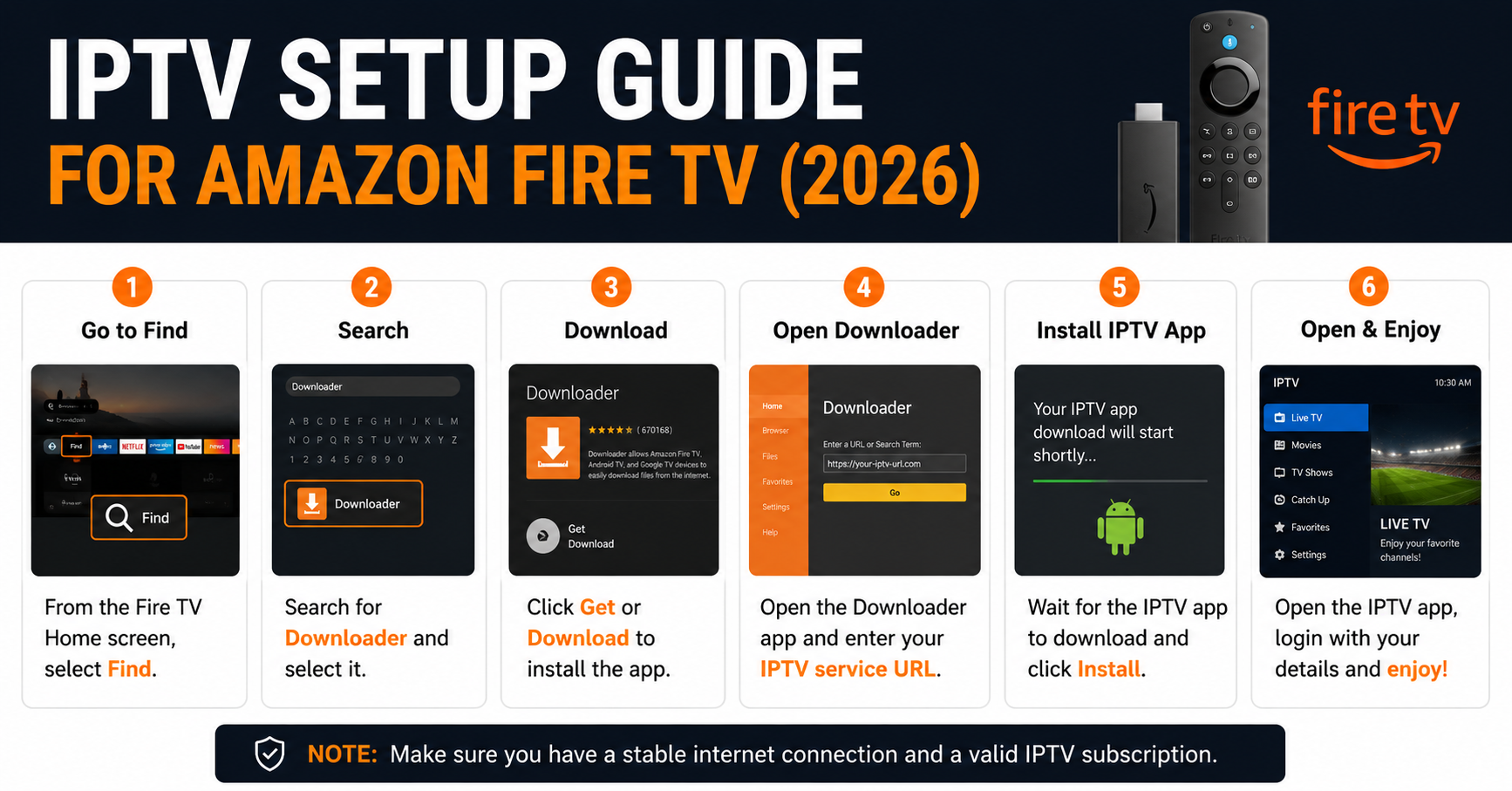
IPTV Setup Guide for Amazon Fire TV (2026): Every Step That Actually Matters
Most buffering, freezing, and black-screen issues on Firestick have nothing to do with your internet speed. They happen because the initial IPTV setup guide for Amazon Fire TV was either rushed, done wrong, or followed from outdated instructions written before Amazon changed its sideloading policies in 2024. Get the setup wrong at the start and you will chase the same problems in circles for weeks.
This IPTV setup guide for Amazon Fire TV covers the correct process for 2026 — from enabling developer options to choosing the right player app, configuring your M3U playlist, and locking in the settings that actually affect stream quality. Follow it once and do it properly.
Why Your Previous IPTV Setup on Fire TV Probably Failed
The most common complaint we see across support channels is not a bad IPTV service — it is a misconfigured device running an outdated player on incorrect network settings. After reviewing hundreds of setup tickets over the years, a clear pattern emerges: most Firestick users skip the developer options step, install the wrong version of their player app, and never touch the DNS settings. That combination alone accounts for the majority of streaming failures.
Amazon has also tightened its approach to sideloading with successive Fire OS updates. Apps that installed cleanly in 2023 may now require different permissions or alternative installation paths. This IPTV setup guide for Amazon Fire TV accounts for the current Fire OS environment.
What You Need Before Starting
Do not begin setup without confirming you have:
- An active IPTV subscription with M3U URL or Xtream Codes credentials
- A Fire TV Stick 4K, 4K Max, or Fire TV Cube (2nd Gen or later recommended)
- Internet connection of at least 25 Mbps for HD, 50 Mbps for 4K
- The Downloader app (available free from the Amazon Appstore)
- Your IPTV provider’s installation URL or APK link
Pro Tip: Avoid Fire TV Stick Lite for serious IPTV use. It lacks the processing headroom for smooth 4K streams and struggles during high-bitrate live sports — especially during events like the FIFA World Cup 2026 when stream loads spike hard.
Step 1 — Enable Developer Options and Unknown Sources
This is the step most guides bury at the bottom. It should be the first thing you do.
Go to Settings → My Fire TV → Developer Options. Toggle on both ADB Debugging and Apps from Unknown Sources. Without this, you cannot sideload any IPTV player app that is not listed in the Amazon Appstore.
On newer Fire OS versions (Fire OS 8 and above), you may see a warning screen when enabling unknown sources. Accept it. This is Amazon’s standard disclaimer — it does not affect functionality.
Pro Tip: If you do not see the Developer Options menu, go to Settings → My Fire TV → About and click the Fire TV model name seven times rapidly. This unlocks the hidden developer menu — the same method used on Android phones.
Step 2 — Install the Downloader App
Search for Downloader in the Amazon Appstore and install it. This free tool allows you to enter a direct URL and download APK files directly onto your Firestick without needing a PC.
Once installed, open Downloader and grant it storage permissions when prompted. If it asks you to enable accessibility access, do so — this allows automatic APK installation without manual confirmation every time.
Step 3 — Choose and Install the Right IPTV Player
This is where most IPTV setup guides for Amazon Fire TV give outdated advice. Not every player performs equally on Fire TV hardware.
Current recommended options for 2026:
| IPTV Player | M3U Support | Xtream Codes | Fire TV Optimised | 4K Support |
|---|---|---|---|---|
| TiviMate | Yes | Yes | Yes | Yes |
| IPTV Smarters Pro | Yes | Yes | Partial | Yes |
| GSE Smart IPTV | Yes | Yes | Partial | Yes |
| Perfect Player | Yes | No | No | Limited |
| Tivimate Companion | N/A | N/A | Yes | N/A |
TiviMate remains the strongest choice for Fire TV in 2026. Its EPG handling, buffer management, and UI performance on Firestick hardware are noticeably better than competitors. The premium licence costs a small annual fee but eliminates ad interruptions and unlocks multiple playlist support.
To install TiviMate: open Downloader, enter the official TiviMate APK URL provided by your IPTV service or download via the APKPure mirror URL. Install it, then open it directly from your app drawer.
Step 4 — Add Your M3U Playlist or Xtream Codes
Open TiviMate (or your chosen player) and select Add Playlist.
If your provider gave you an M3U URL: Select M3U Playlist → enter your full M3U URL exactly as provided. Do not add spaces or modify the URL string.
If your provider gave you Xtream Codes credentials: Select Xtream Codes → enter the server URL, username, and password separately. This method is more stable than M3U for large channel lists because it loads channels on demand rather than downloading the full playlist upfront.
Pro Tip: If your M3U URL includes a port number (e.g., :8080 or :25461), ensure your router is not blocking outbound traffic on that port. Some ISPs in the UK and US block non-standard ports as part of traffic management policies in 2026.
Step 5 — Configure EPG (Electronic Programme Guide)
Without EPG configured, you are flying blind through channel lists. Most IPTV providers supply an EPG URL alongside your M3U credentials.
In TiviMate: go to Settings → Playlists → select your playlist → EPG Source → enter your EPG URL. Set the EPG update interval to every 12 hours. Avoid setting it lower — aggressive EPG refresh cycles increase background data usage and can trigger ISP traffic monitoring on some networks.
Step 6 — Adjust Playback and Buffer Settings
Default playback settings are not optimised for IPTV streaming. These adjustments make a measurable difference:
- Set video decoder to Hardware (not Auto or Software)
- Set buffer size to 10–15 seconds for live TV, 30 seconds for catch-up content
- Disable automatic stream quality switching if available — let it lock to the highest available quality rather than bouncing between bitrates
- Enable reconnect on interruption so temporary network blips do not kill your stream
For 4K streams specifically, ensure your HDMI cable is HDMI 2.0 or higher and your TV supports HDCP 2.2. We have seen setups where every setting was correct but the stream refused to play in 4K because of an old HDMI cable between the Firestick and the television.
DNS Settings That Improve IPTV Reliability on Fire TV
This section does not appear in most IPTV setup guides for Amazon Fire TV, which is exactly why so many installations underperform.
By default, your Firestick uses your ISP’s DNS servers. In 2026, several major ISPs in the UK, US, Australia, and Canada use DNS-level filtering that can interfere with IPTV stream resolution — even for legal services. Changing to a neutral DNS eliminates this silently.
Go to Settings → Network → select your Wi-Fi connection → Advanced → set DNS 1 to 1.1.1.1 (Cloudflare) and DNS 2 to 8.8.8.8 (Google). These resolvers bypass ISP-level DNS manipulation and generally provide faster lookup times for streaming server addresses.
Pro Tip: If you notice streams working on mobile data but failing on your home Wi-Fi, the issue is almost always ISP-level DNS filtering or deep packet inspection — not your IPTV subscription. Changing DNS on the Firestick resolves this in the majority of cases.
Wi-Fi vs Ethernet: What the Setup Guide Won’t Tell You
Firestick runs on Wi-Fi by default. For casual viewing this is acceptable. For live sports, 4K streams, and multi-stream households, it is a reliability risk.
The Amazon Ethernet Adapter for Fire TV (official accessory) costs under £15 and transforms stream stability. On a wired connection, you eliminate the packet loss and signal interference that cause micro-stutters during high-motion sports broadcasts.
During major football events, one reseller we worked with saw their entire customer complaint rate drop by roughly 40% simply by switching their demo setup from Wi-Fi to Ethernet and sharing this recommendation with customers. The stream quality had not changed — only the delivery path had.
Common IPTV Setup Problems on Amazon Fire TV and What They Actually Mean
Stream loads then immediately freezes: Buffer size too low or ISP throttling detected. Increase buffer to 15 seconds and test with VPN.
Channels appear but show black screen: HDCP handshake failure. Check HDMI cable and TV compatibility. Restart both devices.
EPG shows wrong times: EPG timezone not matching your local timezone. Adjust in player settings.
App crashes when loading large channel lists: Insufficient Firestick RAM. Use Xtream Codes login instead of M3U — it loads channels progressively rather than all at once.
Streams freeze only during sports: Peak traffic congestion at the provider’s server. Ask your provider about their failover infrastructure — quality operators run multiple CDN nodes specifically for sports events.
For UK subscribers comparing provider reliability and pricing, BritishSeller.co.uk provides current UK IPTV reseller-sourced information worth reviewing before committing to a long-term subscription.
What Resellers Should Know About the Amazon Fire TV Setup Process
If you are an IPTV reseller or sub-reseller, the setup process matters beyond your own device. Your customers will follow whatever instructions you give them — and incomplete setup guidance is one of the primary drivers of support tickets and subscriber churn.
Every reseller panel owner running subscriptions on Firestick devices should provide pre-configured setup instructions that include:
- Developer options activation steps
- Correct app version with download link
- DNS configuration settings
- Buffer settings pre-adjusted for your stream infrastructure
- Contact method for EPG issues
IPTV resellers who invest in clear onboarding documentation consistently retain subscribers longer. Customers who set up correctly on day one rarely churn in the first 30 days. Customers who struggle through a broken setup frequently cancel within the first week — regardless of stream quality.
Pro Tip: If you operate a reseller panel, consider creating a short video walkthrough of the exact IPTV setup guide for Amazon Fire TV that matches your specific M3U URL format. Support ticket volume drops significantly when customers can see exactly what they need to do.
FAQ
What is the best IPTV setup guide for Amazon Fire TV in 2026?
The most reliable IPTV setup guide for Amazon Fire TV in 2026 follows this sequence: enable developer options, install Downloader, sideload TiviMate, add your M3U or Xtream Codes playlist, configure EPG, adjust buffer settings, and change DNS to 1.1.1.1. Following every step in order eliminates the majority of common Firestick streaming problems before they start.
Why does my IPTV keep buffering on Fire TV even with fast internet?
Buffering on Firestick is usually caused by ISP throttling, incorrect buffer settings, or a software decoder running instead of hardware decoding. Check that your video decoder is set to Hardware in your player settings. If streams work on mobile data but not home Wi-Fi, your ISP’s DNS or deep packet inspection is likely interfering. Change DNS to 1.1.1.1 and retest.
Do I need to jailbreak my Fire TV Stick to use IPTV?
No. You do not need to jailbreak anything. Enabling Developer Options and Apps from Unknown Sources is a built-in Amazon feature available on all Fire TV devices. It is not a hack — it is a legitimate setting that Amazon includes specifically to allow third-party app installation.
Which IPTV player app works best on Amazon Fire TV?
TiviMate is the strongest performer on Fire TV hardware in 2026. It handles large channel lists efficiently, supports multiple playlists, provides excellent EPG integration, and maintains stable playback during high-traffic periods like live sports events. IPTV Smarters Pro is a viable free alternative for users who do not want to pay for TiviMate Premium.
How do I fix black screen issues in my IPTV setup on Fire TV?
Black screen on a loaded channel is almost always a HDCP handshake failure between the Firestick and the TV. Replace the HDMI cable with an HDMI 2.0 certified cable, restart both the Firestick and the television, and test again. If the issue persists, check whether your TV model supports HDCP 2.2 — some older models do not, which blocks 4K protected streams entirely.
As an IPTV reseller, should I recommend Fire TV to my customers?
Fire TV Stick 4K and 4K Max are among the most reseller-friendly devices to support because they are widely available, affordable, and simple to set up. For resellers and sub-resellers managing large subscriber bases, standardising on a single device type reduces support complexity significantly. Providing your subscribers with a clear IPTV setup guide for Amazon Fire TV built around your specific panel credentials reduces setup calls and early cancellations.
Can I run multiple IPTV playlists on the same Fire TV device?
Yes — TiviMate Premium supports multiple simultaneous playlists on a single device. This is useful for resellers testing their own panel alongside a backup provider, or for households with access to more than one IPTV subscription. Free player apps typically support only one active playlist at a time.
Is this IPTV setup guide for Amazon Fire TV compatible with older Firestick models?
The core steps apply to all Fire TV devices. However, older models such as the original Fire TV Stick (1st and 2nd Gen) may struggle with 4K streams and large EPG databases due to limited RAM and processing power. For any subscriber experiencing consistent performance issues on older hardware, upgrading to a Fire TV Stick 4K Max is the most cost-effective solution available in 2026.
FAQ Schema
<script type=”application/ld+json”> { “@context”: “https://schema.org”, “@type”: “FAQPage”, “mainEntity”: [ { “@type”: “Question”, “name”: “What is the best IPTV setup guide for Amazon Fire TV in 2026?”, “acceptedAnswer”: { “@type”: “Answer”, “text”: “The most reliable IPTV setup guide for Amazon Fire TV in 2026 follows this sequence: enable developer options, install Downloader, sideload TiviMate, add your M3U or Xtream Codes playlist, configure EPG, adjust buffer settings, and change DNS to 1.1.1.1. Following every step in order eliminates the majority of common Firestick streaming problems before they start.” } }, { “@type”: “Question”, “name”: “Why does my IPTV keep buffering on Fire TV even with fast internet?”, “acceptedAnswer”: { “@type”: “Answer”, “text”: “Buffering on Firestick is usually caused by ISP throttling, incorrect buffer settings, or a software decoder running instead of hardware decoding. Check that your video decoder is set to Hardware in your player settings. If streams work on mobile data but not home Wi-Fi, your ISP’s DNS or deep packet inspection is likely interfering. Change DNS to 1.1.1.1 and retest.” } }, { “@type”: “Question”, “name”: “Do I need to jailbreak my Fire TV Stick to use IPTV?”, “acceptedAnswer”: { “@type”: “Answer”, “text”: “No. You do not need to jailbreak anything. Enabling Developer Options and Apps from Unknown Sources is a built-in Amazon feature available on all Fire TV devices. It is not a hack — it is a legitimate setting that Amazon includes specifically to allow third-party app installation.” } }, { “@type”: “Question”, “name”: “Which IPTV player app works best on Amazon Fire TV?”, “acceptedAnswer”: { “@type”: “Answer”, “text”: “TiviMate is the strongest performer on Fire TV hardware in 2026. It handles large channel lists efficiently, supports multiple playlists, provides excellent EPG integration, and maintains stable playback during high-traffic periods like live sports events. IPTV Smarters Pro is a viable free alternative for users who do not want to pay for TiviMate Premium.” } }, { “@type”: “Question”, “name”: “How do I fix black screen issues in my IPTV setup on Fire TV?”, “acceptedAnswer”: { “@type”: “Answer”, “text”: “Black screen on a loaded channel is almost always a HDCP handshake failure between the Firestick and the TV. Replace the HDMI cable with an HDMI 2.0 certified cable, restart both the Firestick and the television, and test again. If the issue persists, check whether your TV model supports HDCP 2.2 — some older models do not, which blocks 4K protected streams entirely.” } }, { “@type”: “Question”, “name”: “As an IPTV reseller, should I recommend Fire TV to my customers?”, “acceptedAnswer”: { “@type”: “Answer”, “text”: “Fire TV Stick 4K and 4K Max are among the most reseller-friendly devices to support because they are widely available, affordable, and simple to set up. For resellers and sub-resellers managing large subscriber bases, standardising on a single device type reduces support complexity significantly. Providing your subscribers with a clear IPTV setup guide for Amazon Fire TV built around your specific panel credentials reduces setup calls and early cancellations.” } }, { “@type”: “Question”, “name”: “Can I run multiple IPTV playlists on the same Fire TV device?”, “acceptedAnswer”: { “@type”: “Answer”, “text”: “Yes — TiviMate Premium supports multiple simultaneous playlists on a single device. This is useful for resellers testing their own panel alongside a backup provider, or for households with access to more than one IPTV subscription. Free player apps typically support only one active playlist at a time.” } }, { “@type”: “Question”, “name”: “Is this IPTV setup guide for Amazon Fire TV compatible with older Firestick models?”, “acceptedAnswer”: { “@type”: “Answer”, “text”: “The core steps apply to all Fire TV devices. However, older models such as the original Fire TV Stick (1st and 2nd Gen) may struggle with 4K streams and large EPG databases due to limited RAM and processing power. For any subscriber experiencing consistent performance issues on older hardware, upgrading to a Fire TV Stick 4K Max is the most cost-effective solution available in 2026.” } } ] } </script>
Success Checklist
Subscribers
- Enable Developer Options and Unknown Sources before installing any app
- Install TiviMate or IPTV Smarters Pro via Downloader app
- Use Xtream Codes login if your channel list exceeds 2,000 channels
- Set video decoder to Hardware in player settings
- Change DNS to 1.1.1.1 on your Firestick network settings
- Set buffer to 10–15 seconds for live TV
- Connect via Ethernet adapter for live sports events
- Replace HDMI cable if experiencing black screen on 4K content
Resellers
- Build a device-specific setup guide matched to your M3U URL format
- Provide DNS change instructions with every new subscription
- Recommend TiviMate Premium to subscribers — it reduces support tickets
- Specify buffer settings in your onboarding documentation
- Advise subscribers on Ethernet adapter for sports viewing
- Test your own panel on a Fire TV Stick before recommending it to customers
- Document the EPG URL alongside M3U credentials in welcome emails
Sub-Resellers
- Use the same setup guide your parent reseller panel owner provides — do not improvise
- Record your own walkthrough video using the exact credentials format your panel uses
- Track which setup steps generate the most support requests and address them proactively
- Avoid recommending older Firestick models to new subscribers
- Confirm EPG is working correctly during onboarding calls before ending the session
Conclusion
The IPTV setup guide for Amazon Fire TV has not changed dramatically in concept since 2022, but the execution details matter more now than they ever did. Fire OS updates, stricter sideloading warnings, ISP-level DNS filtering, and increasing 4K stream demands mean that a half-completed setup produces noticeably worse results than it would have three years ago.
Every subscriber who follows this IPTV setup guide for Amazon Fire TV correctly — developer options, right player, Xtream Codes login, hardware decoder, DNS change, buffer settings, Ethernet where possible — ends up with a stable streaming experience that rarely generates a support ticket. Every subscriber who skips two or three of those steps ends up blaming the service rather than the configuration.
For UK IPTV resellers and sub-resellers, that distinction is the difference between a retained customer and a chargeback.
The single most important lesson from years of Firestick setup support is this: the device is not the problem, and neither is the connection in most cases. The problem is almost always a setting that was left on its default value when it should have been changed on day one. Audit your own setup against this guide, then make sure every subscriber you bring on does the same — your churn rate will tell you whether they did.