
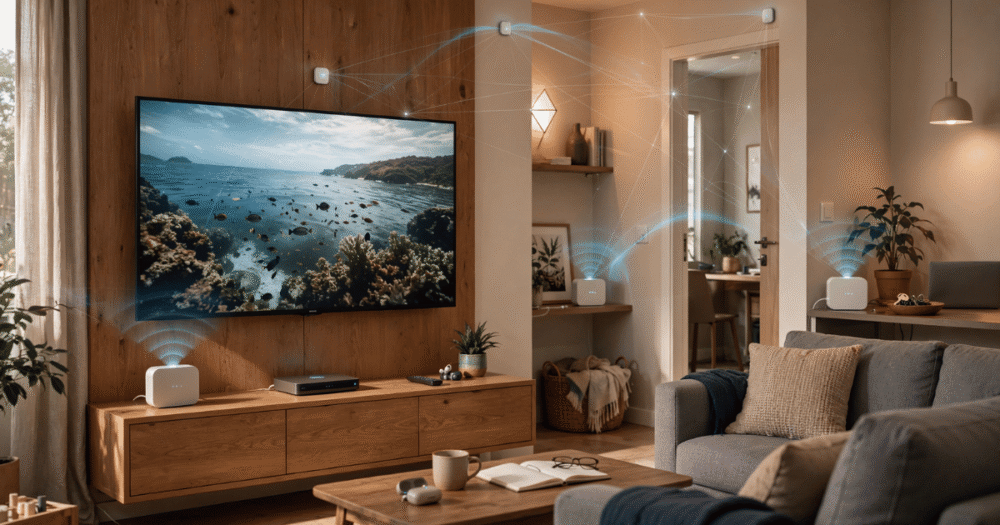
Most buffering complaints aren’t a panel problem. They’re a router problem wearing a panel costume.
I’ve spent years troubleshooting tickets where the subscriber swears the IPTV service is broken, the reseller swears the panel is fine, and the actual culprit is a single Wi-Fi router trying to push 4K streams through two walls and a kitchen. Mesh Wi-Fi for IPTV isn’t a luxury upgrade — it’s the missing piece that decides whether your service looks premium or amateur on the living room TV.
This article breaks down how mesh networks actually interact with IPTV traffic, where people get the setup wrong, and what resellers should be telling subscribers before the support ticket ever gets opened.
What Mesh Wi-Fi Actually Fixes for IPTV Streaming
A single router broadcasts from one point. Every wall, floor, and metal appliance between that point and the TV eats signal strength. Mesh Wi-Fi for IPTV solves this by placing multiple nodes around the property, each one relaying the signal so the smart TV or Firestick always connects to the strongest nearby source instead of fighting for scraps from a router three rooms away.
This matters more for IPTV than for general browsing because streaming is continuous. A dropped packet during a web page load is invisible. A dropped packet during a live sports stream shows up instantly as a freeze or pixelation. IPTV traffic is also bursty — adaptive bitrate switching means the stream is constantly renegotiating quality, and a weak signal makes that renegotiation happen constantly instead of occasionally.
Pro Tip: If a subscriber reports buffering only in one specific room, that’s a mesh node placement issue, not a panel issue. Ask which room before troubleshooting anything else.
The other piece people miss is backhaul — the connection between mesh nodes themselves. Wireless backhaul shares the same airwaves as client devices, which means a poorly placed mesh system can actually create more congestion than the single router it replaced.
The Backhaul Mistake That Wrecks 4K Streams
Wireless backhaul mesh systems split bandwidth between talking to your devices and talking to each other. On a 3-node setup with weak wireless backhaul, you can lose 40-50% of effective throughput before a single stream even starts.
This is the single biggest reason mesh upgrades disappoint people. They buy a mesh kit expecting instant fixes, place the nodes too far apart, and end up with worse buffering than before because the backhaul link between nodes is starved.
Better setup priorities, in order:
- Wired backhaul (Ethernet between nodes) wherever the home layout allows it
- Dedicated backhaul band mesh systems (tri-band units that reserve one band purely for node-to-node traffic)
- Node placement within line-of-sight or one wall maximum, not “the other end of the house”
- 5GHz or 6GHz priority for the TV/Firestick connection itself, not 2.4GHz
For a reseller managing dozens of household subscriptions, this is worth a standard line in your onboarding message. A subscriber who wires even one backhaul link between two nodes will see a dramatically more stable HLS stream than one running pure wireless mesh with nodes scattered across three floors.
QoS Settings Most People Never Touch
Quality of Service settings exist on almost every modern router and mesh system, and almost nobody touches them. QoS lets you prioritize traffic types so the device running IPTV gets first claim on available bandwidth over a phone doing a background backup or a laptop downloading updates.
Without QoS, your mesh network treats a 4K sport stream with the same priority as a Spotify playlist. Both get bandwidth on a first-come basis, and that’s exactly when buffering spikes during peak hours — every device in the house competing equally for the same pipe.
| Setup Type | Without QoS | With QoS Prioritization |
|---|---|---|
| Peak-hour buffering | Frequent, especially during live sports | Rare, IPTV traffic protected |
| Bandwidth competition | All devices treated equally | Streaming device gets priority |
| Setup time | None | 5-10 minutes in router admin panel |
| Subscriber complaints | Higher volume during evenings | Noticeably reduced |
Most mesh systems now let you tag a specific device — by MAC address or device name — as a priority client directly from the app, no technical networking knowledge required.
Pro Tip: Tell subscribers to prioritize the streaming device itself, not the whole room. A phone on the same Wi-Fi pulling a software update can still throttle the TV if QoS is applied per-network instead of per-device.
Mesh Node Placement: Where People Get It Wrong
The instinct is to spread nodes evenly across square footage. That’s the wrong metric. The right metric is signal overlap — each node should sit where it still gets a strong connection back to the previous node, not where it covers the most new floor space.
A common failure pattern: one node in the living room near the router, one node upstairs in a bedroom far from both the router and the living room. The upstairs node technically extends coverage, but it’s barely connected to the mesh backbone itself, so any device using it inherits that weak link.
Placement checklist for IPTV-heavy households:
- Place nodes in hallways or central rooms, not bedrooms at the far end of the house
- Keep maximum two walls between any node and its nearest neighbor
- Elevate nodes off the floor — table height or higher, away from metal furniture
- Avoid placing a node directly behind a TV or large appliance
- Test each node’s backhaul signal strength before finalizing placement, most apps show this number directly
This is where reseller-provided setup guidance creates real differentiation. Anyone can sell a subscription. Fewer resellers actually walk a customer through why their stream stutters at 8pm and what physically fixes it.
ISP Throttling vs Mesh Limitations: Telling Them Apart
Not every buffering issue is a mesh problem. Some ISPs apply traffic shaping or deep packet inspection that specifically targets streaming-pattern traffic, regardless of how good the home network is. This is a separate issue from mesh hardware, and confusing the two wastes everyone’s time.
The diagnostic difference is consistency. A mesh placement issue tends to be room-specific and time-independent — it buffers in the same spot regardless of hour. An ISP-side throttling issue tends to be network-wide and time-dependent — it gets worse specifically during peak evening hours across every device, even ones sitting right next to the router.
For resellers fielding tickets, this distinction decides whether you’re troubleshooting hardware or recommending a backup connection method. A service built on resilient infrastructure built to handle real-world network conditions matters more here than most subscribers realize, because no amount of mesh optimization fixes an upstream throttling problem.
Pro Tip: Ask the subscriber to test the same stream on mobile data versus home Wi-Fi during a buffering complaint. If mobile data is clean and home Wi-Fi buffers network-wide, that’s an ISP-side signal, not a mesh problem.
Mesh Systems by Household Size: What Actually Scales
Not every household needs the same mesh investment. Matching the system to the actual footprint avoids both underspending (a single node trying to cover three floors) and overspending (a 5-node system in a one-bedroom flat).
Rough scaling guide:
- Small flat/apartment, single floor: one router, mesh usually unnecessary unless walls are unusually dense
- Standard 3-bedroom house: 2-node mesh with wired or dedicated-band backhaul
- Multi-floor house with 4+ simultaneous streams: 3-node mesh, wired backhaul strongly recommended
- Large or detached properties: 3+ nodes plus consideration of a dedicated access point for outdoor or garage areas
Sub-resellers managing multiple household accounts under one panel should treat this as a checklist question during onboarding rather than an afterthought during a complaint call. Asking “how many floors, how many simultaneous streams” upfront prevents half the buffering tickets that show up two weeks later.
Concurrent Streams and the Hidden Bandwidth Math
A household running IPTV across three TVs simultaneously isn’t tripling bandwidth needs in a simple way — concurrent HLS streams each renegotiate bitrate independently, and a mesh network under strain will often degrade all three at once rather than just one.
This is where panel-side concurrent connection limits and home network capacity intersect. A subscriber can have a perfectly capable internet plan and panel allowance, but if the mesh network itself can’t cleanly route three simultaneous 4K-capable streams to three different rooms, all three suffer.
Quick bandwidth reality check per stream:
- SD stream: roughly 1-3 Mbps sustained
- HD stream: roughly 5-8 Mbps sustained
- 4K stream: roughly 15-25 Mbps sustained, with spikes higher
Multiply by simultaneous TVs, then add headroom — both for other household devices and for the bitrate spikes that happen during fast-motion sports content. A home running three 4K streams needs a network, not just an internet plan, that can actually move that volume of consistent traffic indoors.
Frequently Asked Questions
Does mesh Wi-Fi actually improve IPTV streaming quality?
Yes, when set up correctly. Mesh Wi-Fi for IPTV solves the coverage gaps that cause buffering in rooms far from the main router. The improvement depends heavily on backhaul quality and node placement — a poorly placed mesh system can underperform a single strong router.
How many mesh nodes do I need for IPTV streaming?
It depends on home size and simultaneous stream count. Most 3-bedroom homes do well with 2 nodes. Larger or multi-floor properties with several active streams typically need 3 or more, ideally with wired backhaul between at least two nodes.
Why does my IPTV still buffer after installing mesh Wi-Fi?
Common causes include weak wireless backhaul between nodes, poor node placement (too far apart or behind obstacles), missing QoS prioritization, or an ISP-side throttling issue unrelated to the home network entirely.
Can I use mesh Wi-Fi with an IPTV reseller panel and multiple sub-reseller accounts on one network?
Yes, the panel and reseller structure operate independently from the home network. Mesh Wi-Fi affects local stream delivery only — it has no bearing on panel credits, concurrent connection limits, or how sub-reseller accounts are managed upstream.
Is wired backhaul really necessary for IPTV mesh setups?
It’s not mandatory but strongly recommended for households running multiple simultaneous streams or 4K content. Wired backhaul removes the bandwidth-sharing penalty that wireless backhaul mesh systems impose between node-to-node and node-to-device traffic.
What’s the difference between mesh Wi-Fi buffering and ISP throttling?
Mesh issues tend to be room-specific and consistent regardless of time of day. ISP throttling tends to affect the whole network simultaneously and worsens specifically during peak evening hours, even on devices sitting close to the router.
Should resellers recommend specific mesh Wi-Fi brands to subscribers?
Most resellers are better off recommending setup principles (wired backhaul, central placement, QoS prioritization) rather than specific brands, since hardware changes faster than service guidance. Focus subscriber education on placement and prioritization fundamentals instead.
Does mesh Wi-Fi help with sports streaming specifically during major tournaments?
Yes, often more noticeably than with regular content. Live sports streams are bitrate-sensitive and have zero tolerance for buffering during key moments, so a stable mesh network with QoS prioritization makes the biggest visible difference during high-demand events.
Success Checklist
For Subscribers:
- Test backhaul signal strength on each mesh node before finalizing placement
- Wire at least one backhaul connection if running 3+ simultaneous streams
- Enable QoS and prioritize the streaming device, not the whole network
- Keep nodes centrally placed, max two walls from their nearest neighbor
For Resellers:
- Ask about household floor count and simultaneous stream count during onboarding
- Include basic mesh placement guidance in welcome materials to reduce buffering tickets
- Distinguish mesh-side issues from ISP throttling before escalating support tickets
- Point subscribers toward IPTV services and reliable setup support proactively
For Sub-Resellers:
- Treat network diagnostics as a standard step before assuming panel faults
- Reference how the IPTV reseller panel works when explaining where responsibility sits between panel and home network
- Bundle basic mesh troubleshooting into your support documentation to reduce escalations
- Direct serious infrastructure questions to IPTV services for backend reliability that complements solid home networking