
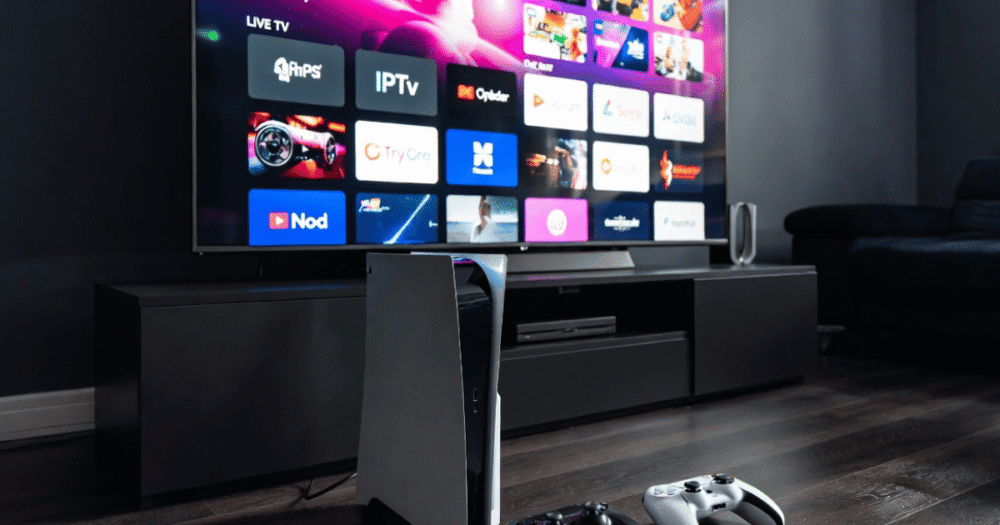
Why Gaming Consoles Are Becoming Serious IPTV Devices in 2026
Most people still think of a PS5 or Xbox Series X as a gaming machine. That thinking is already outdated. In 2026, these consoles are sitting in living rooms with 4K displays, Dolby Atmos soundbars, and 1Gbps fibre connections — all the hardware you need for premium IPTV streaming.
The shift is not accidental. Households that already pay for a console subscription do not want a separate streaming box cluttering their entertainment unit. IPTV on gaming consoles solves that problem cleanly — one device, multiple use cases, zero extra hardware.
For resellers, this audience is particularly valuable. Console users tend to be technically comfortable, willing to follow a setup guide, and far less likely to churn if the service runs well. They do not call support to ask what an M3U URL is.
That said, neither Sony nor Microsoft has opened their platforms to IPTV apps through official stores. This creates friction that every reseller should understand before pushing console-based setups to customers. The workarounds exist and they work — but they each carry different performance ceilings and stability trade-offs.
Pro Tip: When onboarding console users, always confirm whether they’re on wired Ethernet before troubleshooting. Wi-Fi on a PS5 drops HLS latency tolerance significantly during peak hours, which creates buffering complaints that have nothing to do with your server infrastructure.
Understanding the real setup landscape — not the simplified version — is what separates resellers who retain console customers from those who lose them after week one.
IPTV on Gaming Consoles: The PS5 Situation Most Guides Get Wrong
Here is what most IPTV content does not say plainly: the PS5 has no native IPTV app support through the PlayStation Store. There is no IPTV Smarters Pro download, no TiviMate, no Xtream UI client available through official channels.
What the PS5 does have is a built-in web browser — one that Sony has deliberately kept off the main menu but remains accessible through the console’s user manual section. This browser is the entry point for most IPTV workarounds.
The two approaches that work consistently in 2026:
- Browser-based players — Services like IPTV Blink Player load directly in the PS5 browser. You enter your M3U URL, and the player handles the stream. No installation, no APK, no risk of console firmware conflicts.
- Plex with M3U import — Plex is available natively on the PlayStation Store. Once installed, you can add a Live TV source using your provider’s M3U link. This gives you a proper EPG, channel list, and catch-up interface — though it adds a layer of latency that not every infrastructure setup handles cleanly.
Neither method gives you the full feature set of a dedicated Android IPTV app. What they do give you is a working, stable stream on a device your customer already owns.
For resellers, the key is setting expectations correctly at onboarding. Console IPTV is a workaround, not a native experience. Customers who understand this do not raise tickets when the interface feels basic.
Xbox Series X and S: Where IPTV on Gaming Consoles Actually Gets Easier
Xbox has a meaningful advantage over PlayStation when it comes to IPTV on gaming consoles — it runs on a modified version of Windows, which opens access to the Microsoft Store’s broader app library.
Apps available directly through the Microsoft Store that support IPTV:
- MyIPTV Player — Accepts M3U playlists and Xtream Codes credentials. Simple interface, reliable load handling, widely used across the reseller ecosystem.
- VLC for Xbox — Handles M3U streams directly. Best for customers who only need a few channels without a full EPG setup.
- Kodi — Available on Xbox with add-on support. More configuration required, but gives customers the most flexible experience once set up.
Pro Tip: For Xbox customers using Xtream Codes login, always test the server URL format before handing it over. Some panel providers generate URLs with non-standard port formatting that MyIPTV Player rejects silently — the app loads but shows zero channels, and the customer assumes the subscription is broken.
The Xbox path is genuinely cleaner for resellers managing volume. Fewer setup steps means fewer support requests. MyIPTV Player on Xbox Series X with a wired connection and a quality panel will deliver a experience that competes directly with a dedicated IPTV box.
Comparing Console IPTV Methods: Where Each One Breaks Down
| Setup Method | Best For | Weakness |
|---|---|---|
| PS5 Browser Player | Quick access, no install | No EPG, session timeouts |
| Plex on PS4/PS5 | Full EPG, VOD integration | Adds HLS latency layer |
| MyIPTV Player on Xbox | Clean M3U/Xtream setup | Limited customisation |
| Kodi on Xbox | Advanced users, add-ons | Requires technical config |
| VLC on Xbox | Lightweight streaming | No EPG support |
The table above reveals something resellers need to internalise: no console method eliminates the middleware entirely. Every option adds at least one processing layer between the stream source and the display output. That extra layer matters when your upstream server is already under load during peak times — a premium sports event, for instance.
Load balancing on the server side becomes more critical, not less, when your customer base includes console users. Console players do not handle buffering recovery the way a dedicated IPTV box does. A two-second freeze on a Firestick app recovers silently. On a PS5 browser player, the same freeze sometimes kills the session entirely.
Why IPTV Infrastructure Quality Decides the Console Experience
Console users have no control over playback buffering algorithms the way Android app users do. They cannot adjust HLS timeout settings, swap between stream URLs mid-playback, or manually trigger a server reconnect. If the stream drops, they see a blank screen and call you.
This is why IPTV on gaming consoles is a stress test for your panel infrastructure, not just a device compatibility question. The following infrastructure factors directly affect console streaming quality:
- Back-up uplink servers — If your primary server goes down during a premium sports stream and there is no automatic failover, console users are the first to notice and the last to reconnect. A panel with 3+ backup servers with sub-3-second failover switching is the baseline.
- HLS segment length — Shorter HLS segments reduce buffering time on recovery but increase server request frequency. Consoles handle segment request spikes differently than Android players.
- DNS poisoning exposure — In 2026, AI-driven ISP blocking tools are increasingly targeting IPTV stream URLs at the DNS level. Console browsers have no VPN integration layer, which means DNS poisoning hits console users harder than any other device type.
Pro Tip: Encourage console-heavy customers to set their DNS manually to a private resolver like Cloudflare or NextDNS on the console’s network settings. This single step eliminates most DNS-level blocking issues without requiring a VPN subscription.
If your current panel does not offer multi-server failover, reviewing your options at a provider like British Seller’s IPTV reseller infrastructure is worth the time before you scale a console-focused customer base.
How Resellers Should Structure Console-Specific Onboarding
Most IPTV resellers send the same welcome message to every customer regardless of device. That is a churn driver, not a retention strategy. Console users need a different onboarding flow because their setup path is different and their failure points are different.
A console-specific onboarding process should cover:
- Device confirmation — Confirm whether the customer has PS5, PS4, Xbox Series X/S, or Xbox One before sending any setup instructions. Setup steps differ significantly across these.
- Connection type check — Ask whether they are on wired Ethernet or Wi-Fi. If Wi-Fi, recommend they test on a wired connection before reporting any issues.
- Method selection — For PlayStation users, default to the browser-based method unless they specifically request Plex. For Xbox users, direct them to MyIPTV Player as the primary option.
- First 48-hour check-in — Console setups are more likely to have edge case issues. A brief check-in message within 48 hours catches problems before they become cancellation requests.
Structured onboarding is also a sales tool. Customers who receive device-specific instructions within the first hour of purchase have significantly lower churn rates than those who receive generic credentials and a generic PDF. That is not theory — it is what separates resellers who build subscriber bases from those who constantly replace them.
Explore the full range of panel management tools available through IPTV services to understand what structured reseller dashboards look like in practice.
ISP Blocking and Console IPTV: The 2026 Enforcement Landscape
The blocking environment has changed significantly since 2023. AI-driven detection tools deployed by ISPs and enforcement agencies now identify IPTV stream patterns at the packet level — not just through URL blacklists. This creates specific problems for IPTV on gaming consoles that resellers need to communicate clearly to customers.
Console browsers do not support native VPN integration. Unlike Android devices where a VPN app runs system-wide, PS5 and Xbox users who want VPN protection need to configure it at the router level. This is a meaningful barrier for non-technical customers.
The practical impact for resellers:
- Console customers in regions with aggressive ISP blocking will experience more disruption than other device users
- DNS-level blocking is the most common attack vector — and it hits unprotected console browsers directly
- Premium sports events remain the highest-risk streaming window; ISP traffic analysis intensifies during major live events
The resellers who handle this best are not the ones with the most technical knowledge — they are the ones who communicate proactively. A brief message before a major premium sports event reminding console users to check their DNS settings costs nothing and prevents a wave of support tickets.
Understanding how panel infrastructure responds to these enforcement waves is explained in detail at how IPTV reseller panel works.
IPTV on Gaming Consoles: Managing Customer Expectations at Scale
There is a ceiling to what console IPTV can deliver compared to a dedicated device. The resellers who hit churn problems with console customers are almost always the ones who oversold the experience during the sales conversation.
The honest positioning is straightforward: IPTV on gaming consoles works well for daily viewing, catch-up content, and general channel browsing. For customers who watch live premium sports in 4K regularly, a dedicated IPTV box alongside the console delivers a more stable experience, IPTV on gaming consoles.
That framing is not a weakness — it is a trust-builder. Customers who receive honest guidance at the point of sale do not become angry customers two weeks later when they hit a limitation you already told them about.
At scale, this means segmenting your customer base by device type in your panel. Console users should be identifiable in your dashboard so that when infrastructure issues occur, you know exactly which customers are most likely to be affected and can prioritise communication accordingly.
Review the full range of panel and subscription management tools at IPTV services to see how this kind of segmentation works in a professional reseller environment.
Frequently Asked Questions
Can I run IPTV on a PS5 without installing any apps?
Yes. The PS5 has a built-in browser accessible through its user manual section. Browser-based IPTV players allow you to enter an M3U URL and stream directly without installing anything. It is the simplest method for most PlayStation users, though it lacks EPG support and may time out during extended sessions.
What is the best IPTV app for Xbox gaming consoles in 2026?
MyIPTV Player, available through the Microsoft Store, is the most straightforward option for Xbox users. It accepts both M3U playlists and Xtream Codes credentials. For users who want more customisation, Kodi is available on Xbox but requires additional configuration. VLC works for lightweight streaming without an EPG.
Why does IPTV buffer more on gaming consoles than on a Firestick?
Console IPTV methods add a middleware layer — a browser or third-party app — between the stream and the display. This layer reduces the player’s ability to recover from brief stream interruptions. A dedicated IPTV device typically handles buffering recovery faster because the player communicates directly with the stream protocol without that additional processing step.
Does IPTV on gaming consoles work with Xtream Codes login?
On Xbox, yes — MyIPTV Player and Kodi both accept Xtream Codes credentials. On PS5 and PS4, the browser-based players and Plex primarily work with M3U URLs. Some Xtream Codes portals generate an M3U URL you can extract from the panel and use on PlayStation.
As a reseller, should I actively market IPTV to console users?
Console users are a worthwhile segment — technically comfortable, usually on good internet connections, and already invested in their home entertainment setup. The key is device-specific onboarding and honest capability framing. Do not oversell 4K live sports on a PS5 browser. Position console IPTV as a convenient secondary setup method and you will retain these customers long-term.
Is DNS blocking a bigger problem for IPTV on gaming consoles?
Yes. AI-driven ISP blocking tools increasingly target IPTV streams at the DNS level. Consoles have no native VPN layer, which means DNS-based blocking affects them more directly than Android or Windows devices. Advising customers to set a private DNS resolver in their console network settings eliminates the majority of DNS-level disruption.
Can I use IPTV on an older Xbox One or PS4?
Yes. Xbox One supports MyIPTV Player and VLC through the Microsoft Store. PS4 supports the browser-based method and Plex. Performance will be lower than on current-generation consoles, particularly for 4K streams, but standard HD and FHD content runs adequately on both older platforms with a stable internet connection.
What internet speed do gaming consoles need for IPTV streaming?
For reliable IPTV on gaming consoles, a minimum of 25 Mbps is recommended for FHD streams and 50 Mbps for consistent 4K playback. Wired Ethernet is strongly preferred. Wi-Fi introduces variable latency that increases buffering risk, particularly during peak household usage hours when multiple devices share the connection.
Console IPTV Reseller Success Checklist
- Confirm customer device (PS5 / PS4 / Xbox Series X/S / Xbox One) before sending any setup guide
- Send device-specific onboarding — never a generic credential email
- For PS5 customers: default to browser-based player; offer Plex only if they want EPG
- For Xbox customers: direct to MyIPTV Player first; confirm M3U or Xtream Codes format
- Advise all console customers to use wired Ethernet before any other troubleshooting
- Instruct customers to set manual DNS (Cloudflare 1.1.1.1 or NextDNS) in console network settings
- Verify your panel has multi-server failover with sub-3-second switching before scaling console subscribers
- Send a proactive heads-up before major premium sports events reminding console users to confirm their stream setup
- Segment console users in your panel dashboard so you can communicate to them specifically during outages
- Review your infrastructure’s HLS latency handling — console players are less forgiving of segment recovery delays than Android-based clients