
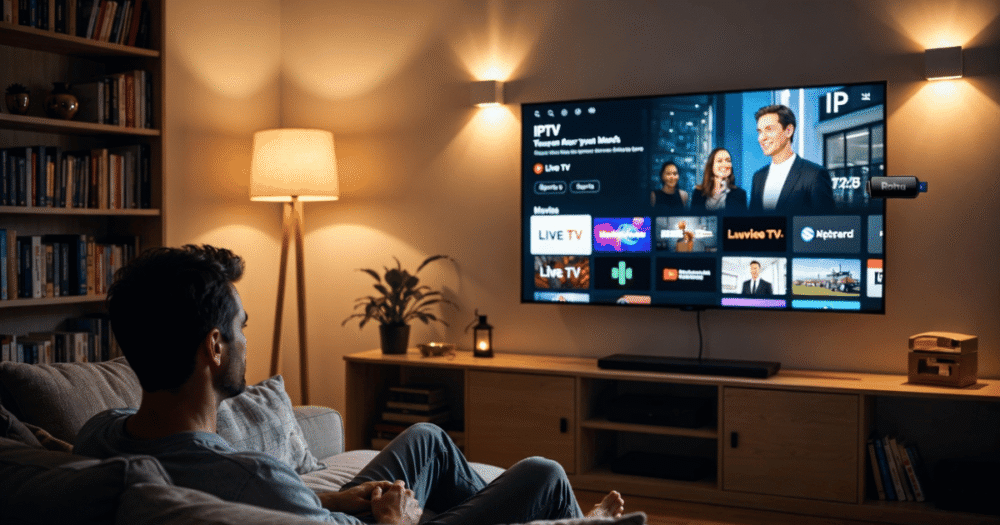
How to Set Up IPTV on Roku or Firestick — The 2026 Operator’s Guide
Here’s a scenario that plays out thousands of times a week. Someone gets their IPTV credentials, opens their Firestick or Roku, searches for their provider’s app, finds nothing, and either gives up or installs the wrong application entirely. The subscription works fine. The setup is the problem. And because most guides are written by people who’ve never actually managed a live IPTV environment, they skip the part where things go wrong.
Setting up IPTV on Roku or Firestick is not complicated — but it is specific. The wrong app, the wrong login method, or the wrong device settings will produce buffering, freezing, and login failures that have nothing to do with your subscription quality. This guide covers both devices from scratch, including the differences that matter, the settings most people miss, and what to do when it doesn’t work first time.
Why Firestick and Roku Handle IPTV Completely Differently
Before touching either device, understand this: Firestick and Roku are fundamentally different in how they allow third-party application installation, and that difference completely changes your IPTV setup approach.
Amazon’s Fire OS is based on Android. This means you can sideload applications — install APK files that aren’t available in the Amazon Appstore — with a simple settings change. Most IPTV applications are distributed as APKs. This makes Firestick the more flexible device for IPTV setup, and the reason it dominates the reseller ecosystem.
Roku runs a proprietary operating system with no APK support. You cannot sideload anything. Every application must come from the Roku Channel Store or be installed via Roku’s private channel system using a channel code. This limits your IPTV app options significantly, though workable solutions exist.
Pro Tip: If a customer asks whether they should buy a Firestick or Roku specifically for IPTV, the answer is always Firestick. The sideloading capability alone gives you three times the app options, better codec support, and more flexibility when your primary app stops working or gets delisted. Roku is a usable fallback — not a first choice.
How to Set Up IPTV on Firestick — Step-by-Step
Step 1: Enable Apps From Unknown Sources
This is the most critical step and the one most guides bury at the bottom. Without this, no sideloaded IPTV app will install.
On your Firestick: Settings → My Fire TV → Developer Options → Apps from Unknown Sources → Turn ON. On newer Fire OS versions this may appear as “Install Unknown Apps” and requires per-app permission rather than a global toggle — enable it specifically for the Downloader app.
Step 2: Install Downloader
Downloader is a free tool available in the Amazon Appstore. Search for it directly and install it. This is the browser and file manager you’ll use to download and install IPTV APKs directly on the device.
Step 3: Download Your IPTV App via Downloader
Open Downloader, use the URL bar to navigate to your IPTV app’s direct APK download link. Recommended apps for Firestick in 2026:
- IPTV Smarters Pro — Best all-round option, supports both M3U and Xtream Codes login
- TiviMate — Premium interface, superior EPG handling, ideal for power users
- GSE Smart IPTV — Solid alternative with multi-playlist support
Download the APK, install it when prompted, then open it from your apps list.
Step 4: Enter Your IPTV Credentials
Your provider will supply either M3U URL credentials or Xtream Codes credentials (server URL, username, password). In IPTV Smarters Pro, select “Login with Xtream Codes API” for the cleaner setup if your provider supports it. M3U URL login works on all apps but offers slightly less panel integration.
How to Set Up IPTV on Roku — The Channel Code Method
Understanding Roku’s IPTV Limitations
Roku does not allow APK installation. Your only legitimate route to IPTV on Roku is through private channels — applications published to Roku’s platform but not listed publicly in the Channel Store. These are accessed via a unique channel code provided either by your IPTV app developer or your provider.
The most reliable IPTV-compatible private channels for Roku in 2026 are web-based players accessed through Roku’s built-in browser, or dedicated private channel codes from apps like Channels DVR and similar third-party solutions.
Adding a Private Channel on Roku
On a browser (not the Roku device itself): go to my.roku.com → Add Channel → enter the private channel code → the channel installs to your Roku remotely and appears in your channel list within minutes.
Pro Tip: Roku’s native browser is limited and not optimised for HLS stream delivery. For best performance, use a dedicated Roku private channel app rather than attempting to run your IPTV through the browser. The browser approach produces higher HLS latency and more frequent stream interruptions than a properly configured private channel solution.
IPTV App Settings That Most Firestick Users Get Wrong
Installing the app correctly is only half the job. The default settings on most IPTV applications are not optimised for live streaming, and leaving them at default is a primary cause of unnecessary buffering complaints.
| Setting | Default Value | Optimal Value for Live IPTV |
|---|---|---|
| Stream Buffer Size | Auto / Low | Medium–High (10–30 seconds) |
| Hardware Decoding | Off (some apps) | On (essential for 4K/HD) |
| EPG Refresh Interval | On-demand | Every 24 hours automatic |
| Stream Reconnect Attempts | 1–2 | 5+ |
| Preferred Stream Quality | Automatic | Locked to your connection speed |
| User Agent | Default | Match to provider recommendation |
Hardware decoding is the most impactful setting on Firestick. Older Fire Stick models (Lite and 2nd Gen) have limited hardware decode capability, so if enabling hardware decoding causes crashes, revert to software — but accept that 4K playback may not be stable on those models.
Why IPTV Buffers on Firestick Even With Good Internet
This is the most common post-setup complaint from both subscribers and the resellers supporting them. The stream is installed, the credentials work, but the picture keeps freezing. Here is the real diagnostic process.
Device-level causes (Firestick specific):
- Firestick storage is full — IPTV apps accumulate cache rapidly; clear it via Settings → Applications → Manage Installed Applications → your IPTV app → Clear Cache
- The Firestick is overheating — check whether it’s plugged into a USB port on the TV (low power) versus the included wall adapter (full power). Low power supply causes CPU throttling, which manifests as stream stuttering
- Background apps competing for resources — use a lightweight task killer or restart the Firestick before any major viewing session
Network-level causes:
- Wi-Fi signal degradation between router and Firestick — use an ethernet adapter (the official Amazon USB-C ethernet adapter is the cleanest fix)
- DNS poisoning from ISP targeting IPTV traffic — switch to 1.1.1.1 or 8.8.8.8 in your router settings
- Peak-hour ISP throttling of HLS streams — a dedicated IPTV VPN profile is the resolution
For resellers troubleshooting customer Firestick issues, always confirm power supply method and cache status before escalating to a server-side investigation. The majority of single-device buffering complaints trace back to device or home network issues rather than IPTV services infrastructure.
How to Maintain IPTV Performance on Firestick Long-Term
A Firestick that runs clean on day one will degrade over weeks if not maintained. Understanding this is what separates resellers who get repeat complaints from those whose customers rarely call back.
Monthly maintenance routine:
- Clear app cache on all IPTV applications installed
- Restart the Firestick completely (not just standby) once per week
- Check for Fire OS updates — security patches occasionally change how APKs are handled, which can break sideloaded app functionality
- Re-download your EPG data manually if automatic refresh has failed — stale EPG data is a common, invisible source of subscriber frustration that looks like a content problem but is actually a data sync issue
For resellers managing multiple customer devices, document each customer’s device model and Fire OS version. When a platform update rolls out, it often affects multiple customers simultaneously — knowing their device profile means you can diagnose pattern issues instead of treating each complaint individually.
Understanding how the IPTV reseller panel works helps you determine which issues are device-side versus panel-side, saving hours of misdirected troubleshooting across your subscriber base.
Roku IPTV Performance: Realistic Expectations vs Firestick
Roku users need honest expectations. The platform was not designed with IPTV operators in mind, and its architecture imposes real limitations that no amount of setup optimisation can fully eliminate.
Realistic Roku IPTV performance benchmarks:
- Channel load time: typically 8–15 seconds versus 3–6 seconds on a well-configured Firestick
- Maximum reliable stream quality: Full HD (1080p) — 4K is inconsistent due to Roku’s variable HEVC decoding support across models
- EPG integration: limited compared to dedicated IPTV apps on Firestick; most Roku IPTV channels display basic programme guides at best
- App switching: Roku’s memory management is aggressive, meaning returning to an IPTV channel after switching apps often triggers a full reload rather than resuming playback
None of these are dealbreakers for casual household use. For heavy daily viewing, live sports, or any subscriber who will be paying for a full subscription and expecting TV-quality reliability, Firestick remains the stronger recommendation.
Reviewing the full range of IPTV services available helps you match the right infrastructure tier to the right device — a Roku household may not need a premium 4K-tier subscription if the device cannot reliably deliver it.
IPTV on Firestick vs Roku: Reseller Customer Onboarding Considerations
How you onboard customers differs meaningfully depending on which device they’re using. Treating both the same leads to support tickets that could have been prevented at setup.
For Firestick customers:
- Send a setup guide that includes the Developer Options step — this is the point where most non-technical users stall
- Confirm they are using the wall adapter, not the TV USB port, for power
- Recommend IPTV Smarters Pro as the default app — it has the most stable update cadence and the widest Xtream Codes compatibility
- Include cache-clearing instructions in your welcome pack proactively
For Roku customers:
- Set clear expectations about channel load times upfront — customers who expect instant channel switching will raise complaints if they’re not pre-briefed
- Provide the exact private channel code and my.roku.com installation instructions — do not assume they know the private channel process
- Recommend they lock stream quality manually rather than leaving it on automatic, as Roku’s auto-quality algorithm can make conservative decisions that reduce stream quality unnecessarily
Matching device-specific onboarding to the right IPTV services tier and the right support process prevents the majority of first-month churn that costs resellers repeat business.
Frequently Asked Questions
How do I set up IPTV on Firestick without a computer?
You can complete the entire IPTV setup on Firestick without a computer. Enable Apps from Unknown Sources in Developer Options, install the Downloader app from the Amazon Appstore directly on the Firestick, then use Downloader to navigate to your IPTV app’s APK URL and install it. Your IPTV credentials are entered within the app itself — no computer required at any stage.
Can I set up IPTV on Roku without a private channel code?
No. Roku does not support APK sideloading, so without a private channel code from a compatible IPTV application, your only option is Roku’s built-in browser — which delivers poor stream performance. Contact your IPTV provider or the app developer directly for the current private channel code, as these occasionally change when apps are republished.
Why does my IPTV keep buffering on Firestick after a successful setup?
Post-setup buffering on Firestick is most commonly caused by three factors: the device being powered via the TV’s USB port rather than the wall adapter, accumulated app cache reducing available storage, or ISP-level throttling of HLS traffic. Check power supply first, clear the app cache, and if the issue only occurs at peak hours, your ISP is likely shaping IPTV traffic specifically.
What is the best IPTV app to use on Firestick in 2026?
IPTV Smarters Pro and TiviMate are the two leading options. IPTV Smarters Pro is recommended for most users due to its straightforward Xtream Codes login, broad compatibility, and regular updates. TiviMate offers a superior interface and EPG management but requires a paid premium licence for full functionality. For resellers, IPTV Smarters Pro is the safer default recommendation due to its accessibility for non-technical customers.
Is IPTV setup on Roku the same as on Firestick?
No — they are significantly different processes. Firestick uses APK sideloading through the Downloader app after enabling Developer Options. Roku uses private channel codes installed remotely through the my.roku.com web portal. The apps available on each platform also differ entirely, as Roku cannot run Android-based IPTV applications that work on Firestick.
How do I set up IPTV on Firestick for multiple rooms in my house?
Each Firestick requires the same setup process individually: enable Developer Options, install Downloader, download the IPTV app APK, and enter credentials. Your IPTV subscription may be limited to a set number of simultaneous connections — check with your provider before activating multiple devices to avoid connection conflicts during concurrent family viewing.
Can I use M3U or Xtream Codes login on both Roku and Firestick?
On Firestick, both M3U and Xtream Codes login methods are supported by most major IPTV apps. On Roku, login method support depends entirely on the private channel app you’re using — many Roku-compatible IPTV solutions only support M3U URL input. If your provider supplies Xtream Codes credentials, confirm Roku compatibility before committing to that device for IPTV use.
What should a reseller send customers to help them set up IPTV on Firestick?
Send a written step-by-step guide covering: enabling Developer Options, installing Downloader, downloading the APK, and entering Xtream Codes credentials. Include a note about using the wall power adapter, not the TV USB port. A short video walkthrough reduces support tickets by around 60% for non-technical customers. Pre-brief customers on cache clearing as a first-response fix for any future buffering.
IPTV on Roku or Firestick Setup Checklist for Resellers
Use this for every new customer onboarding. No steps skipped, no assumptions made.
Pre-Delivery:
- Confirm which device the customer is using — Firestick model and generation, or Roku model
- Check whether their Firestick is running current Fire OS — older versions handle APK permissions differently
- Prepare device-specific setup guide before first contact, not after the first support ticket
Firestick Setup Confirmation:
- Developer Options enabled and Apps from Unknown Sources turned on
- Downloader installed from Amazon Appstore
- IPTV app APK downloaded and installed via Downloader
- Xtream Codes or M3U credentials entered and playlist loaded successfully
- Hardware decoding enabled in app settings
- Wall adapter confirmed as power source — not TV USB port
Roku Setup Confirmation:
- Private channel code provided to customer
- Channel installed via my.roku.com (not from the device)
- Channel visible in customer’s Roku channel list
- M3U URL credentials entered and channels loading
- Stream quality locked manually in app settings
Post-Setup Customer Briefing:
- Send cache-clearing instructions proactively
- Set realistic channel-switching speed expectations for Roku users
- Provide direct contact route for first 48-hour support window
- Log device type and setup date for each customer — this data is essential for diagnosing pattern issues during future platform updates
Review current reseller panel options and credit pricing at britishseller.co.uk to ensure your infrastructure matches the device tier your customers are using before scaling your subscriber base further.