
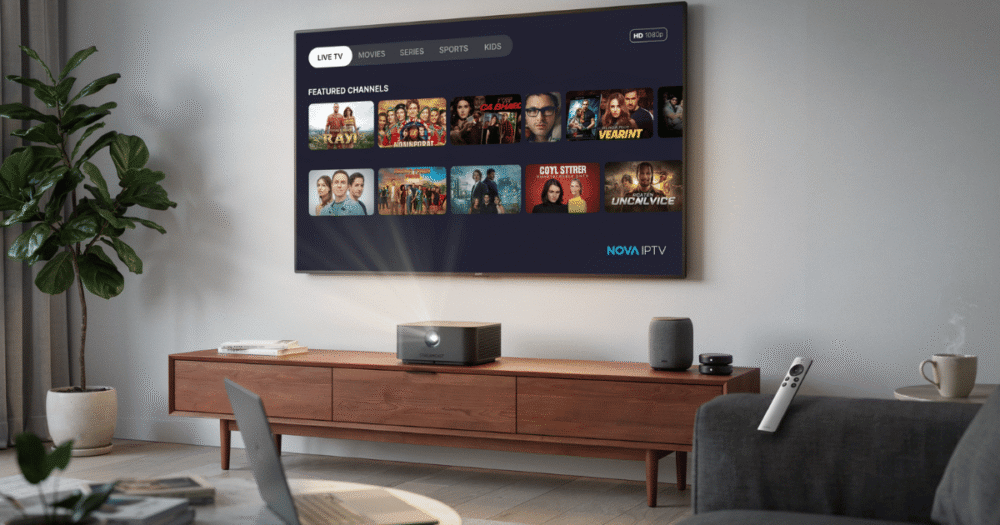
Why Smart Projectors and IPTV Don’t Behave Like a Normal TV Setup
Most setup guides assume IPTV behaves the same on every screen. It doesn’t. Smart projectors and IPTV interact differently than a standard Smart TV because projectors run thinner Android builds, weaker app stores, and — critically — they’re usually placed further from the router than a wall-mounted TV ever is. That distance changes everything about signal stability before a single stream is even loaded.
This matters because projector-based home theater setups are one of the fastest-growing support categories resellers are seeing in 2026. Subscribers buy a projector expecting a cinema experience, plug in IPTV the same way they would on a Fire Stick, and hit buffering, app crashes, or a guide that’s unreadable from across the room.
This guide treats smart projectors and IPTV as their own category — not a footnote on a generic device list — covering the network, app, and display issues specific to large-throw setups, for subscribers building a home theater and resellers supporting them.
App Compatibility: Where Smart Projectors and IPTV Setups Actually Fail First
Before bandwidth or buffering enters the picture, most smart projector and IPTV failures happen at the app layer. Budget and mid-range projectors typically run a stripped-down Android TV build or a closed manufacturer OS with a limited app store — meaning TiviMate, IPTV Smarters Pro, or GSE Smart IPTV often aren’t listed at all.
Compatibility generally falls into three tiers:
- Full Android TV / Google TV certified projectors — install IPTV apps directly from the Play Store, identical to a Smart TV
- Android-based but uncertified projectors — require sideloading via a file manager or USB, since the built-in store only carries manufacturer-approved apps
- Closed proprietary OS projectors — often can’t run IPTV apps natively at all, requiring an external streaming stick or box as a workaround
Checking which tier a projector falls into before setup saves hours of troubleshooting later — and it’s the single most common gap in generic IPTV setup advice.
Network Requirements: The Distance Problem No One Mentions
Projectors are almost always positioned further from the router than a TV — ceiling-mounted, on a back shelf, or across a converted garage or loft space. That distance is the real reason smart projectors and IPTV setups buffer more than identical setups on a nearby Smart TV, even on the same internet plan.
Pro Tip: Never rely on a projector’s built-in Wi-Fi for 4K IPTV streams beyond 5 meters from the router. Use a wired Ethernet adapter into the projector’s USB-C or HDMI-ARC port where supported, or a dedicated 5GHz mesh node placed within direct line of sight. The difference in HLS latency and buffering frequency is dramatic, not marginal.
This is also where load balancing on the provider side matters — even a perfect home network can’t compensate for a panel that doesn’t distribute connections cleanly across backup uplink servers during peak demand.
Sideloading vs. Native Install: Reliability Compared
For projectors without an app store listing for IPTV apps, sideloading is the standard workaround — but reliability varies significantly by method.
| Install Method | Update Reliability | Crash Frequency | Best For |
|---|---|---|---|
| Native Play Store install | Automatic updates | Low | Android TV / Google TV certified projectors |
| Sideload via USB/APK | Manual updates required | Moderate | Android-based uncertified projectors |
| Sideload via Downloader app | Semi-automatic | Moderate | Projectors with basic browser access |
| External Fire Stick/box workaround | Automatic (device-managed) | Low | Closed proprietary OS projectors |
For most households setting up smart projectors and IPTV from scratch, an external streaming stick plugged into the projector’s HDMI input is the most stable long-term solution — it isolates the IPTV app from the projector’s limited OS entirely.
EPG and UI Scaling: Why the Guide Looks Broken on a 120-Inch Screen
A guide that looks fine on a 55-inch TV can become unreadable blown up to projector scale, particularly with smaller font app skins. This isn’t an IPTV fault — it’s a UI scaling mismatch between the app and the projector’s native resolution output.
Subscribers running 1080p projectors with a 4K-formatted app interface often see oversized or pixelated EPG text. Switching the app’s display output setting to match the projector’s actual native resolution — rather than the IPTV stream’s resolution — usually resolves this without touching the subscription itself.
Multi-Device Households: Concurrent Connections Across Rooms
Home theater setups rarely exist in isolation. A household running a projector for movie nights alongside a Smart TV in another room needs to understand concurrent connection limits before assuming something’s “broken.”
- Check whether the subscription plan allows simultaneous streams on two devices, not just two logins
- Confirm whether the smart projector and IPTV are pulling the same EPG feed or separate cached versions, which can cause guide mismatches
- For sub-resellers managing family accounts, document which device is “primary” to avoid support confusion when only one screen buffers
Pro Tip: If a projector buffers only when the TV is also streaming, the issue is almost always a connection-limit cap, not bandwidth. Upgrading the plan’s concurrent stream allowance fixes this far more often than upgrading internet speed does.
The Reseller Angle: Supporting Smart Projector and IPTV Customers Without Generic Advice
Resellers fielding smart projector and IPTV complaints need a different troubleshooting script than the standard “restart the app” response, because the failure points are device-specific, not panel-specific. Knowing which OS tier a customer’s projector falls into before troubleshooting saves real support time.
Providers offering IPTV services built with stable failover and clear concurrent-connection documentation make this easier — resellers can rule out the panel quickly and focus on the actual device issue. Reviewing how IPTV reseller panels work also helps when explaining connection limits to customers who assume “buffering” always means a provider problem.
Frequently Asked Questions
Why does my smart projector buffer more than my TV on the same IPTV plan?
This is almost always distance from the router, not the subscription. Projectors are typically placed further away and rely on weaker Wi-Fi signal strength than a wall-mounted TV. A wired Ethernet adapter or a closer mesh node usually resolves it without any plan changes.
Can I install IPTV apps directly on any smart projector?
Only on projectors certified for Android TV or Google TV. Many budget and mid-range projectors run closed or uncertified Android builds that don’t list IPTV apps in their store, requiring sideloading or an external streaming stick instead.
Is sideloading IPTV apps on a projector safe?
Yes, as long as you download the APK from the official app developer’s site rather than a third-party mirror. Sideloading itself carries no extra subscription risk — it’s simply a manual install method for projectors without store access.
What’s the best resolution setting for smart projectors and IPTV streaming?
Match the app’s display output to your projector’s actual native resolution, not the stream’s advertised resolution. Mismatched scaling is the most common cause of distorted or oversized EPG text on large-throw screens.
Can two people in the same house use a projector and a TV at once on one IPTV account?
Only if the subscription plan’s concurrent connection limit allows it. Many single-connection plans block a second simultaneous stream entirely, which looks like a buffering issue but is actually a connection cap being reached.
How do I know if my projector’s buffering is an IPTV problem or a Wi-Fi problem?
Test the same stream on a device sitting right next to the router. If it runs smoothly there but buffers on the projector, the issue is signal distance, not the IPTV service itself.
As a reseller, what should I ask customers first when they report projector issues?
Ask what OS the projector runs and whether the app was installed from a store or sideloaded. This single question rules out most device-specific causes before you spend time checking panel-side infrastructure.
Do all IPTV apps support 4K output on smart projectors?
Most do, but actual playback quality depends on the projector’s native resolution and the subscription’s available bitrate tiers, not just app support. A 4K-labeled app won’t fix a 1080p-only projector or a connection too unstable to sustain a 4K stream.
Success Checklist
For subscribers: Confirm whether your projector is Android TV certified before assuming an app should be available. Use Ethernet or a close mesh node instead of relying on built-in Wi-Fi for 4K streams. Match the app’s display resolution setting to your projector’s native output, not the stream’s.
For resellers: Build a quick reference for which projector brands are commonly certified vs. uncertified so support tickets resolve faster. Recommend IPTV reseller services with documented concurrent connection limits to set accurate customer expectations upfront. Keep a sideloading walkthrough ready for customers with closed-OS projectors.
For sub-resellers: Clarify with family account holders which device is “primary” before multi-room setups go live. Check connection limits against actual device count before blaming buffering on bandwidth. For panel-level questions, reference providers like britishseller.co.uk, whose white-label credit structure makes plan limits easy to verify before a customer dispute escalates.